Task Status:
- Navigate to Practice Configuration -> Look Up -> Task Status
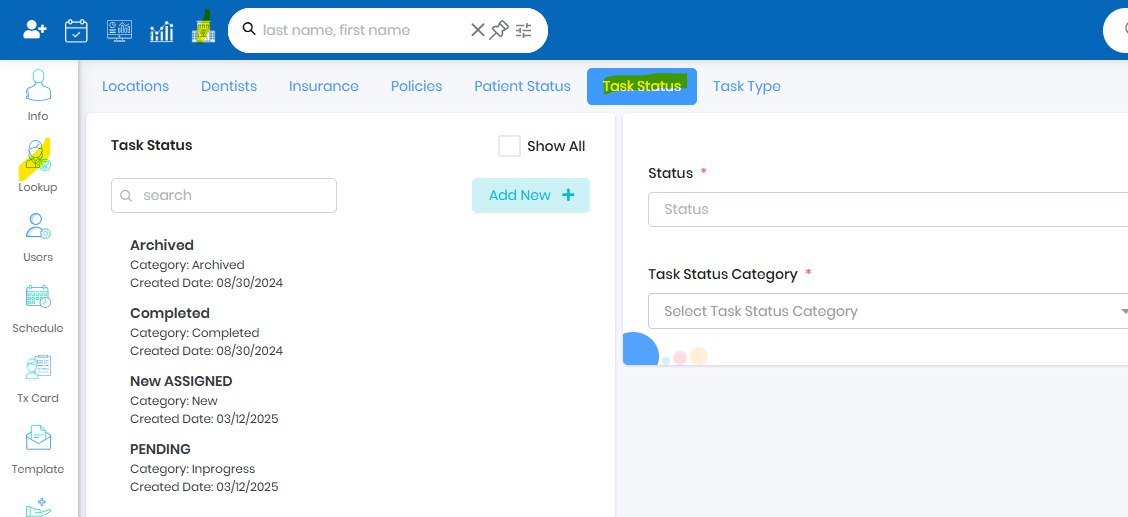
- Click Add New Button to add new Task Status
- Provide Status Name, Status Description and appropriate Category
- Category Type will be New, InProgress
- Hold can be configured under InProgress
- Pending can be configured under New
- Completed and Archived will not show in set up but will show up on Add Task/Manage Task
Task Type:
- Navigate to Practice Configuration -> Look Up -> Task Type
- Click Add New Button to add new Task Type
- Provide Task Type and Description
Task Template:
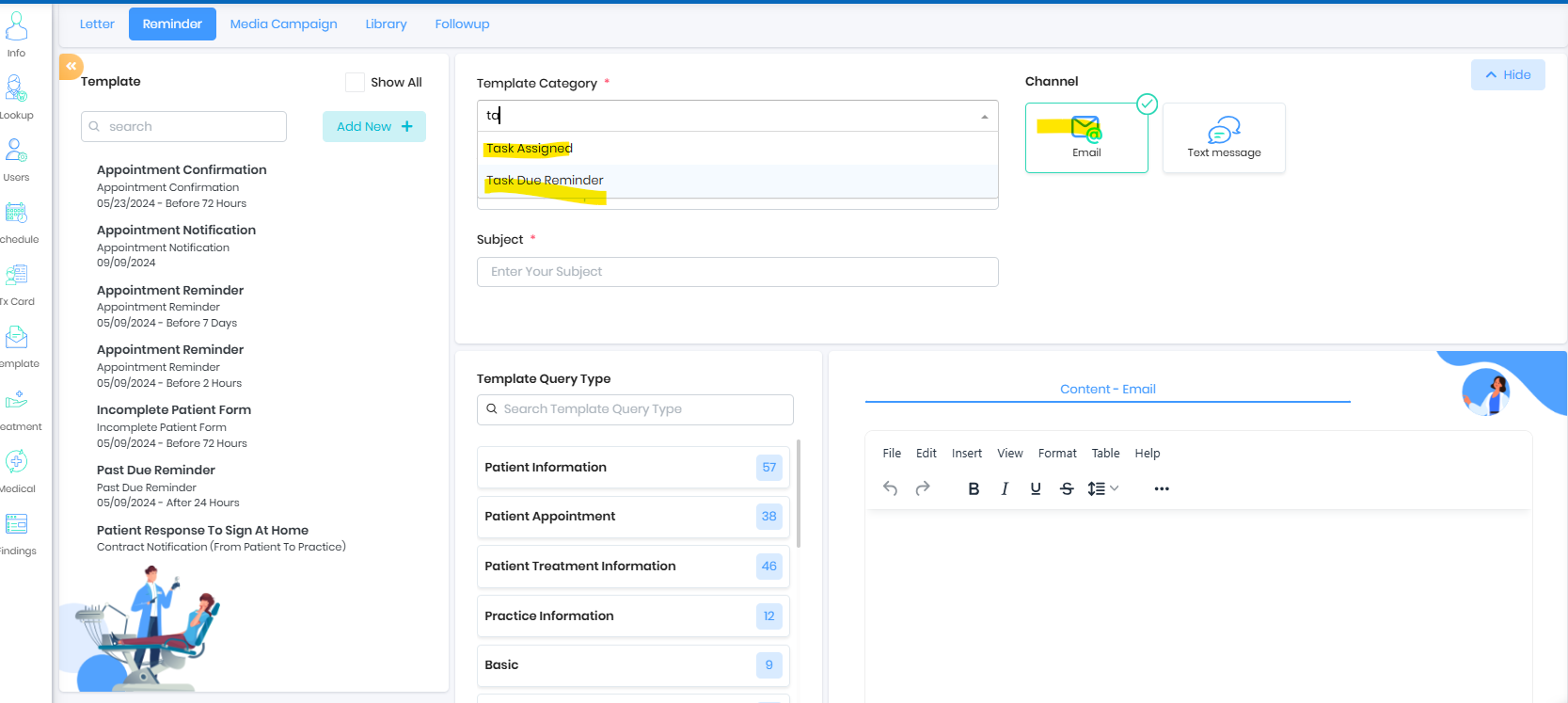
- Navigate to Template-> Reminder
- Set up task email content for the Task Assigned and Task Due Reminder
- Task Assigned will send the notification email to the task assigned users
- Task Due Reminder will send the notification email when the task is due to the user and task created user
Was this article helpful?
That’s Great!
Thank you for your feedback
Sorry! We couldn't be helpful
Thank you for your feedback
Feedback sent
We appreciate your effort and will try to fix the article