Set up Media Template - Video : OrthoSync
Set up Follow up Campaign Sequence
- Add New, provide Followup Name and Description
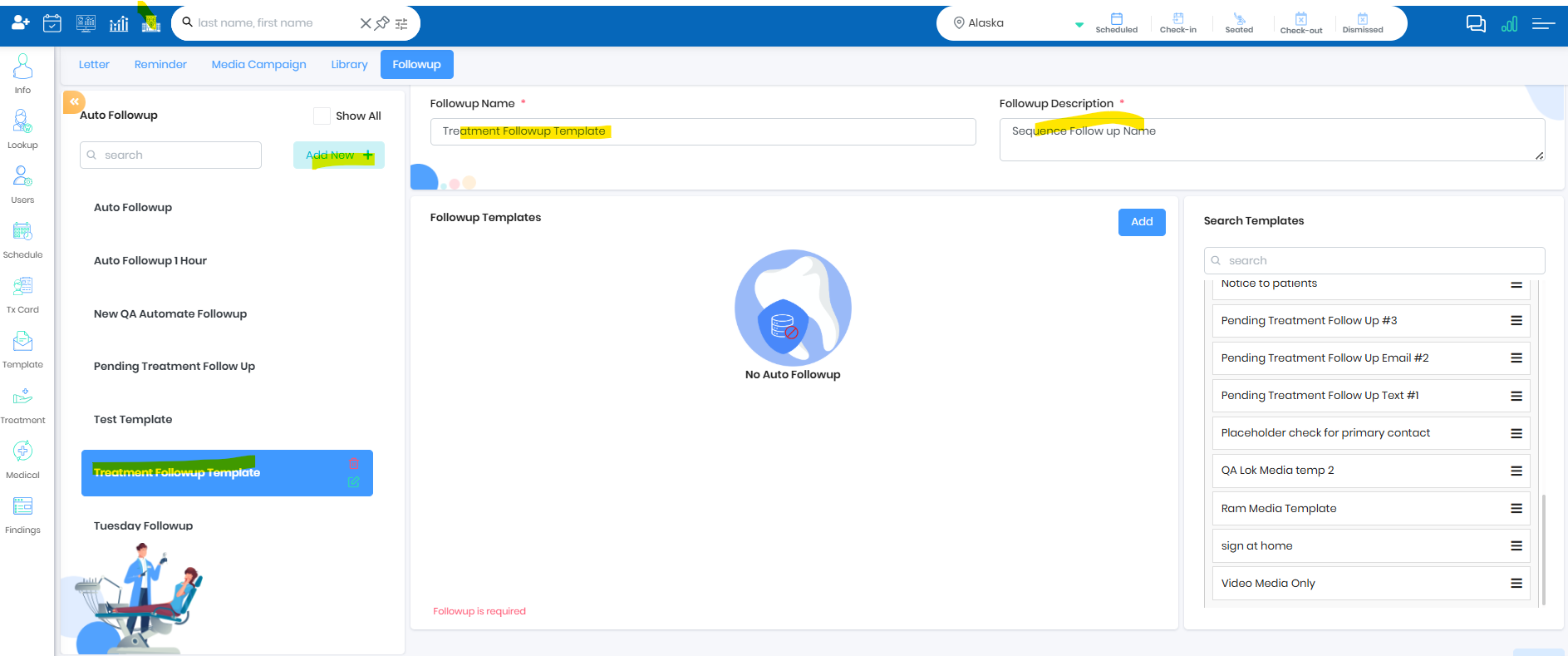 Add Follow up Templates in Sequence
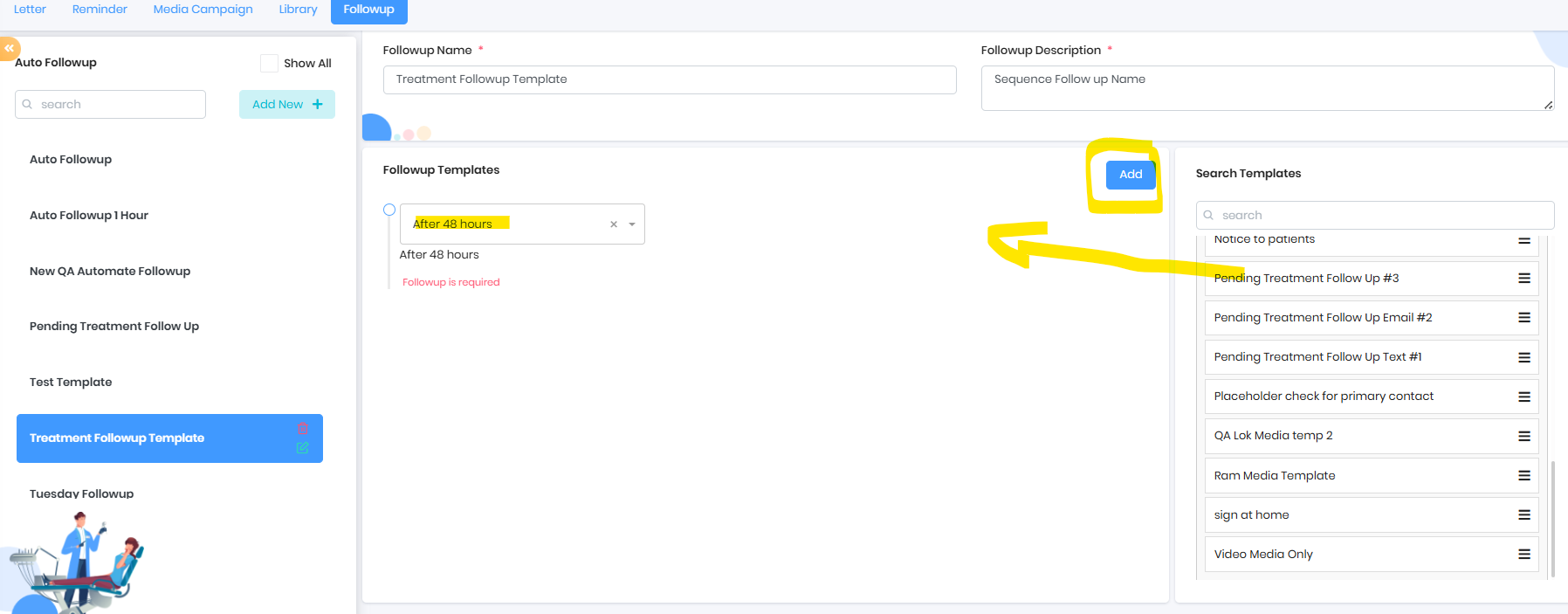
- Click Add and set up the frequency
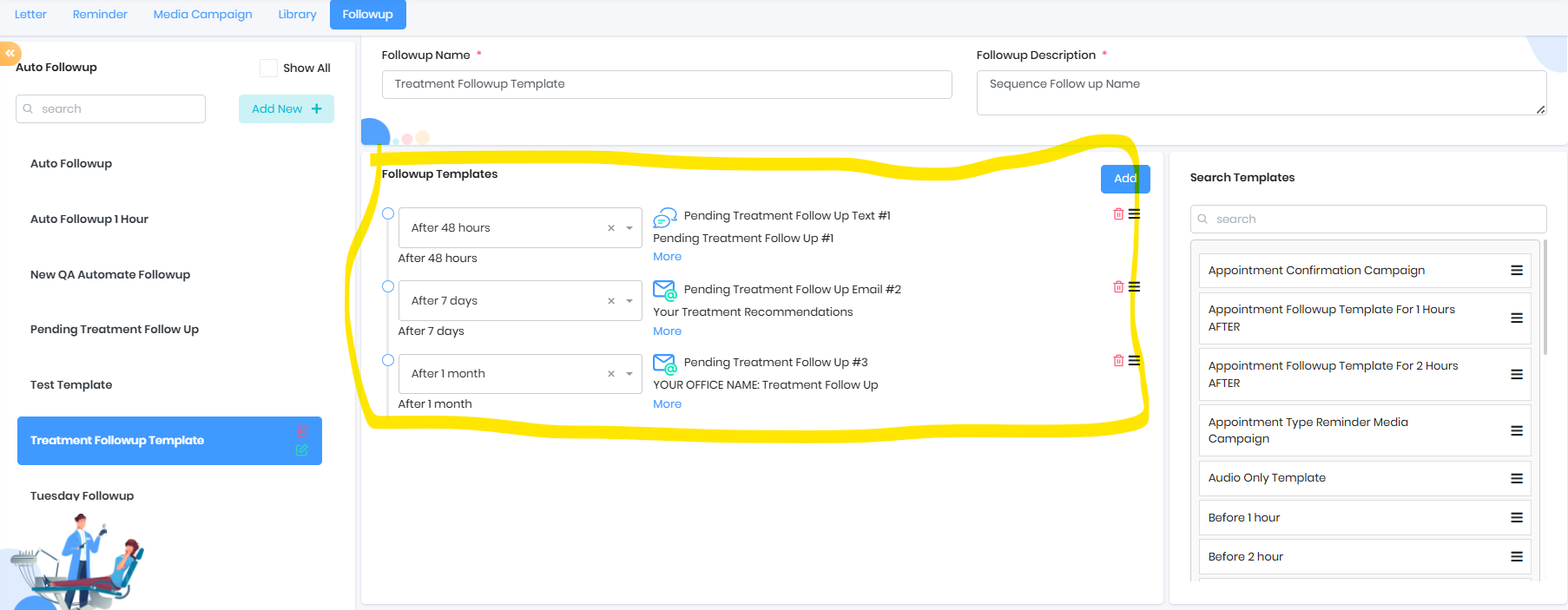
- Drag the template and associate with the frequency
Understanding Follow up
- All patients under the Treatment recommended and no future appointment will be chosen
- Deactivated patients, Do not Pursue, Treatment Declined will be ignored
- Email/Text needs to be enabled for patients to receive the communication
- The patients will be followed up in sequence. The automatic service will run everyday and will pick up the qualified patients.
- When a new template is created thats the reference point for existing patients, first template will kick of the campaign with the 48 hours template and 48 hours from the template creation
- When a new patient is added to the tx recommended bucket, thats the reference point and template will kick of the campaign with the 48 hours template and 48 hours from the patient added
Set up Follow up
- Go to Dashboard -> Automatic Followup and Add Automatic Follow up
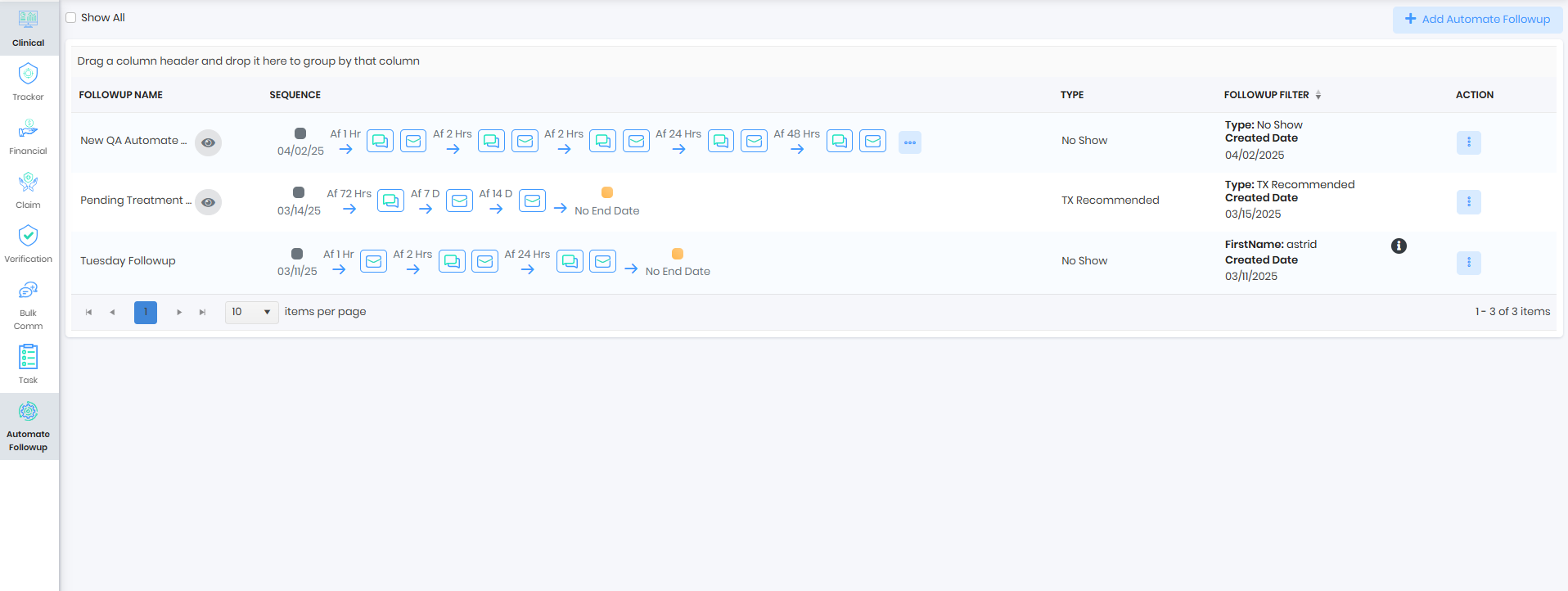
- Currently we have 4 follow up type and user can use various other filters to set up a auto follow up
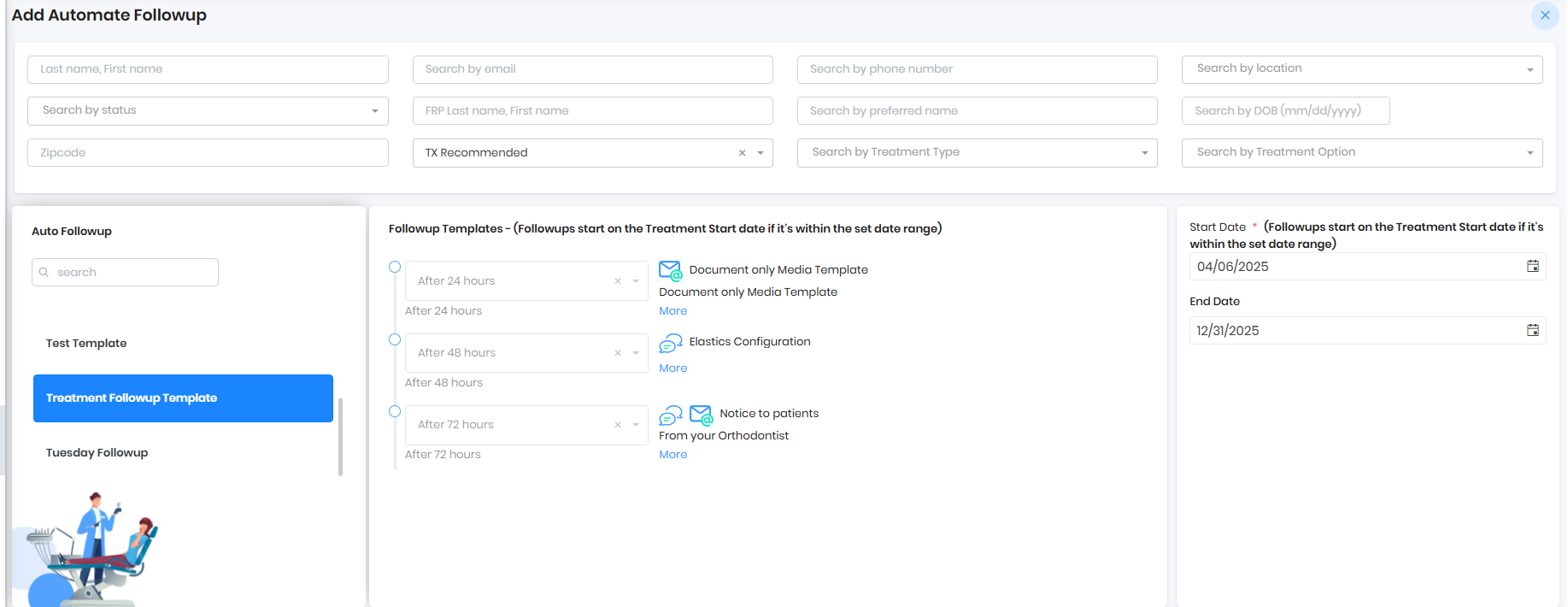
- StartDate is Required and End Date if left blank follow up will run for ever
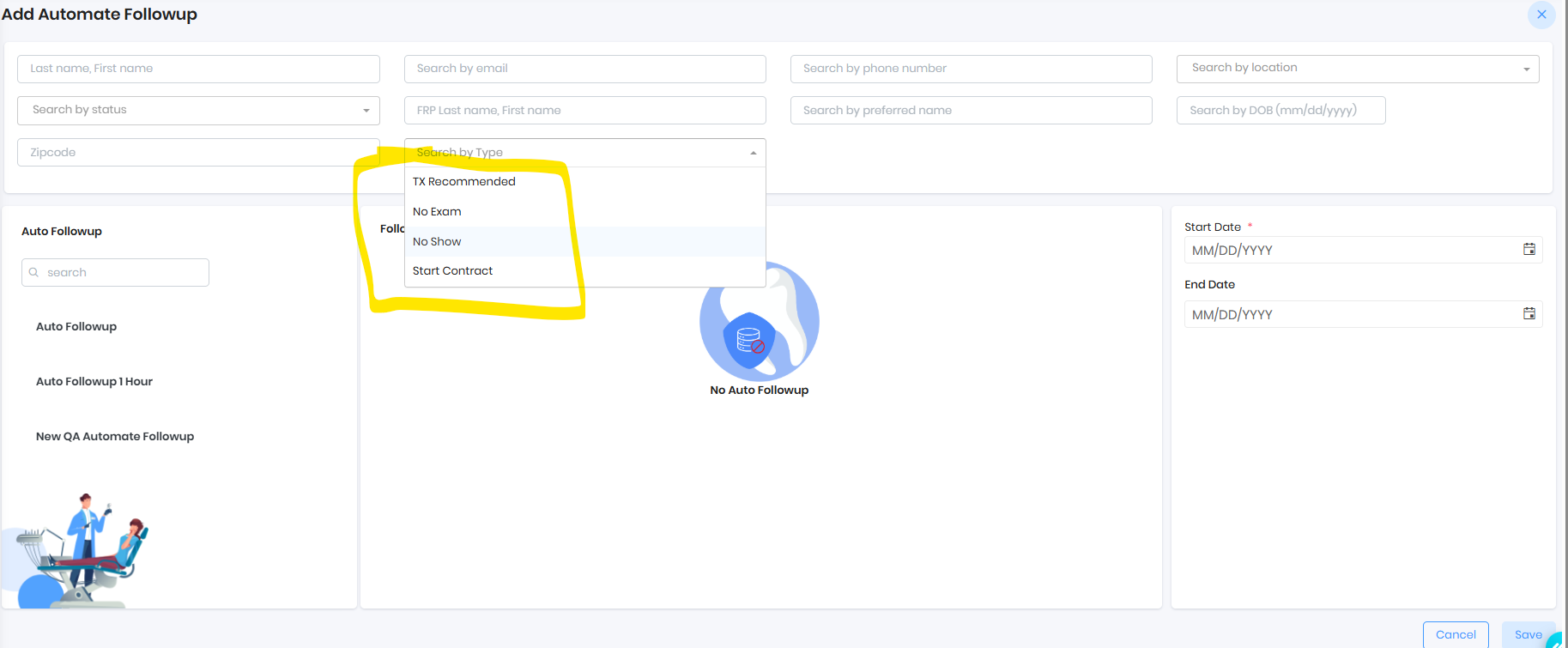
- StartDate is Required and End Date if left blank follow up will run for ever
- Select respective filter and associate auto follow up template

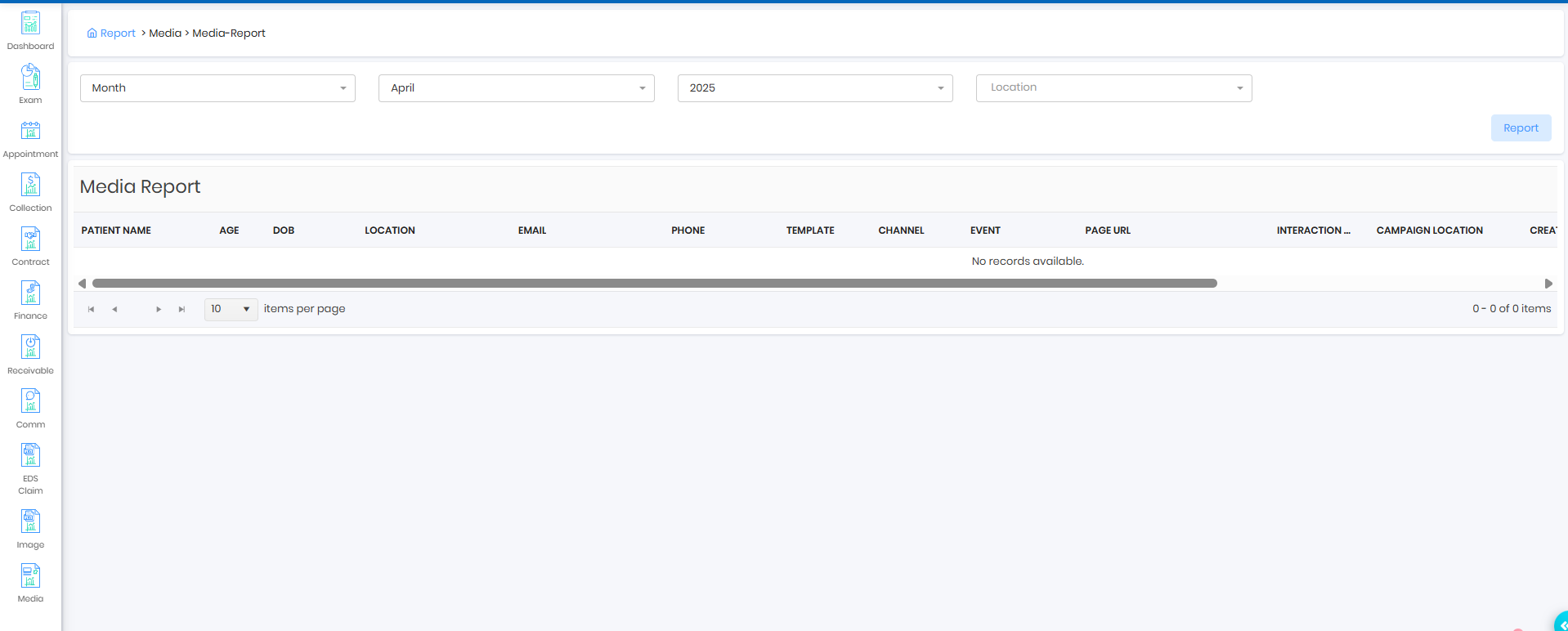
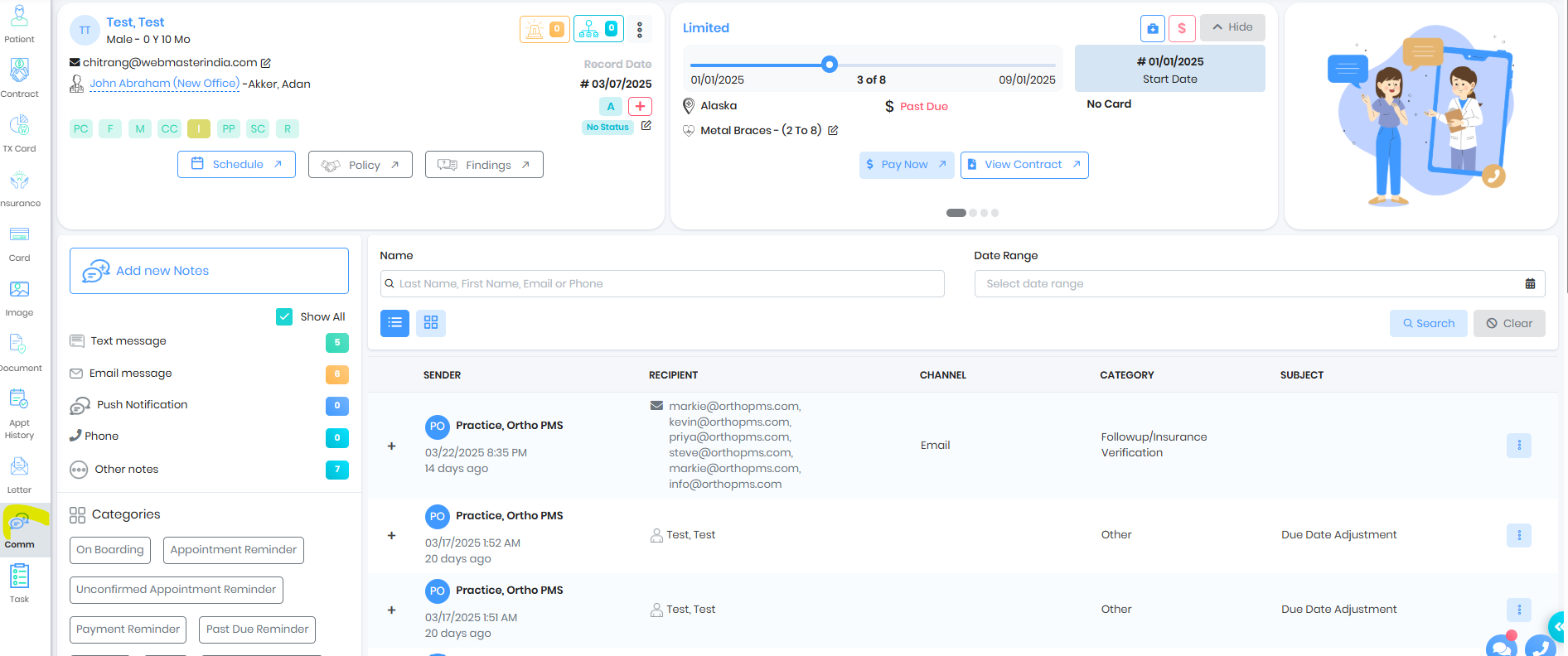
- Follow up can be tracked from the reports and patient communication
Was this article helpful?
That’s Great!
Thank you for your feedback
Sorry! We couldn't be helpful
Thank you for your feedback
Feedback sent
We appreciate your effort and will try to fix the article