This guide explains how to configure, customize, and use the Letter Template feature in OrthoPMS. Follow the instructions below to create professional letters and share them efficiently with patients and dentists.
Go to letter template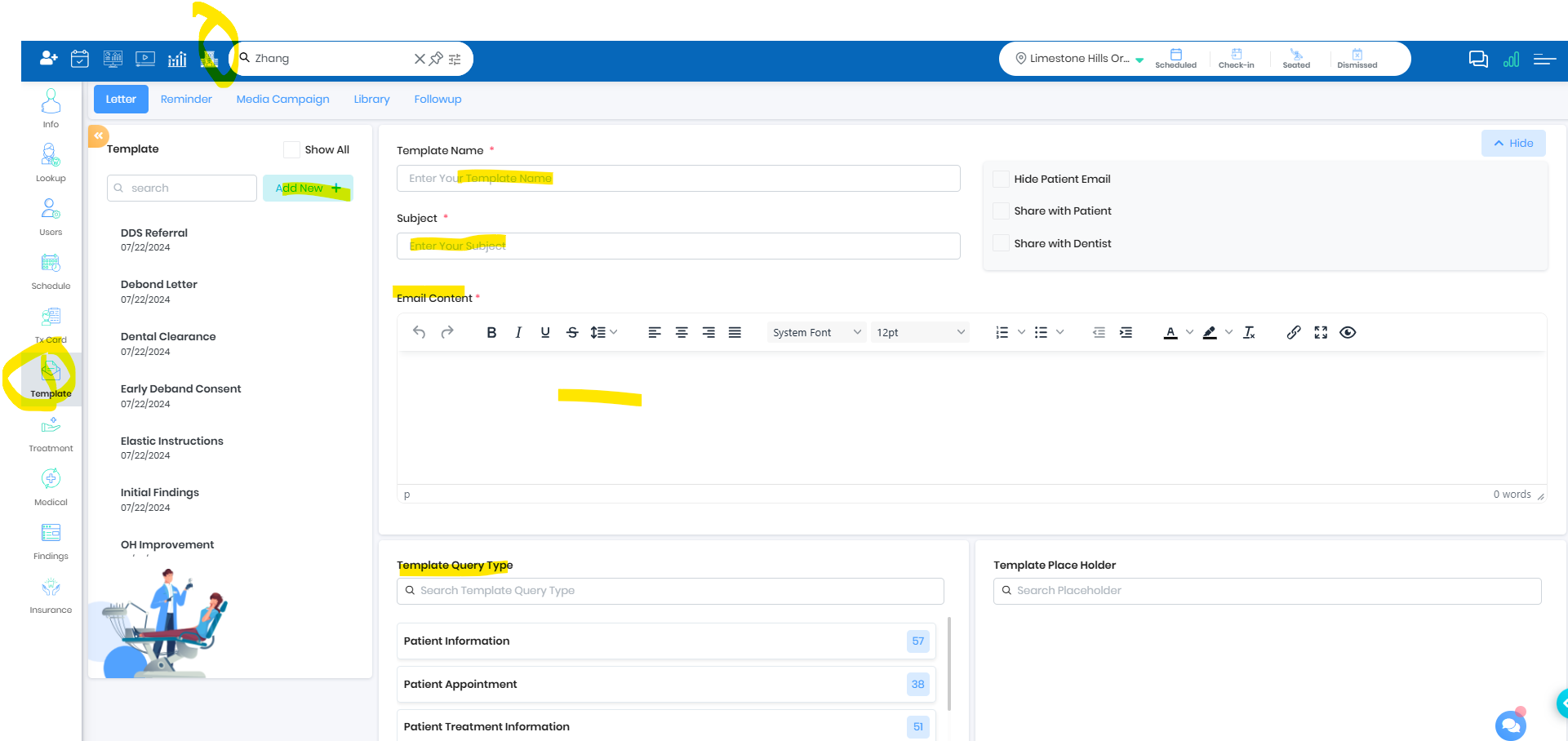
Set up Letter Template
Begin by opening the Letter Template setup screen in OrthoPMS. Here, you will configure the overall name, sharing options, and content settings for your letter.
Configure a Unique letter name
Enter a clear, descriptive name for your letter. This helps you quickly identify templates during future use.
Create a relevant Email subject
Add an engaging email subject line. This will be the subject shown when the letter is sent via email.
Letter Configuration
Use this section to control visibility and sharing preferences for your letter.
- Hide Patient Email - Default patient email will be populated when the letter is created from the patient
- Share With Patient - If you need letter to be shared with the patient
- Share with Dentist - Primary dentist email id will be auto populated in the letter
Email Content
This area allows you to compose the message body for your letter. It supports rich text formatting and images similar to Word or Google Docs.
? Note: You can compose in Microsoft Word or Google Docs and paste directly into the editor for rich formatting.
- This is place holder for the content to be shared with the patient.
- This is a rich text editor and has most of the features like word or google docs
- User can create the content in Microsoft word or Google docs and copy the content to the letter template
- User can use full screen option to work with this editor
Template Parameter
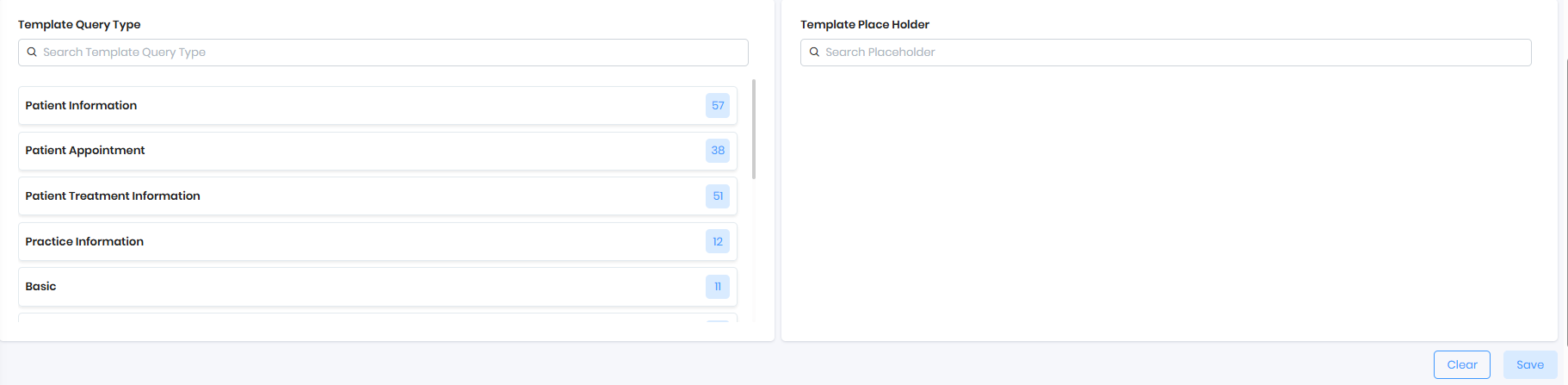
Template parameters help you personalize the letter by inserting patient- or case-specific data fields dynamically.
- On the left side you can find Query Type, this is multi select
- On the right side the relevant parameters will show on query type selection
When you try to use text formatting styles on the parameter, please make sure you carefully select the whole word from the start of the parenthesis to the end.
Attachment Content
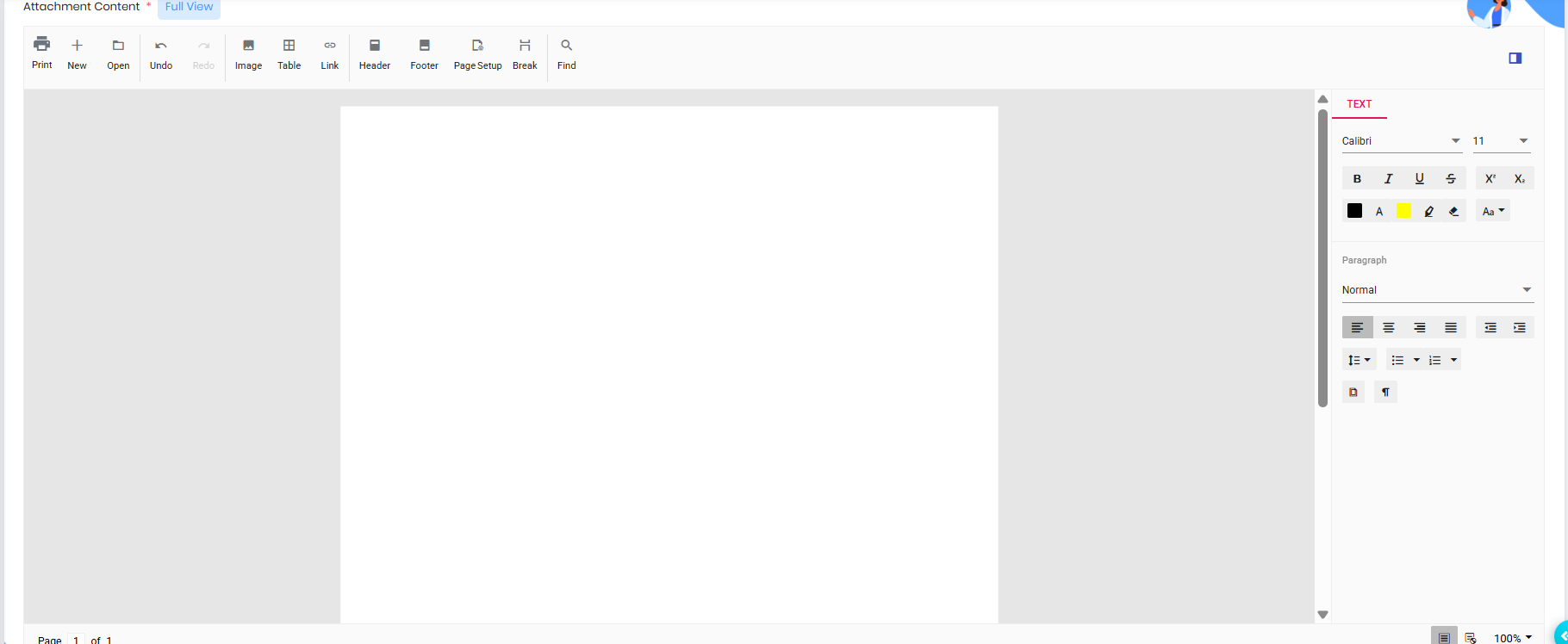
Attachments created here are automatically converted to PDF and sent along with the letter.
The attachment once created will be attached as a pdf when sending the letter to the patient
- On the top, user have options to menu, image, table, header, footer, page setup, page break
- On the side, user have text formatting options
Was this article helpful?
That’s Great!
Thank you for your feedback
Sorry! We couldn't be helpful
Thank you for your feedback
Feedback sent
We appreciate your effort and will try to fix the article