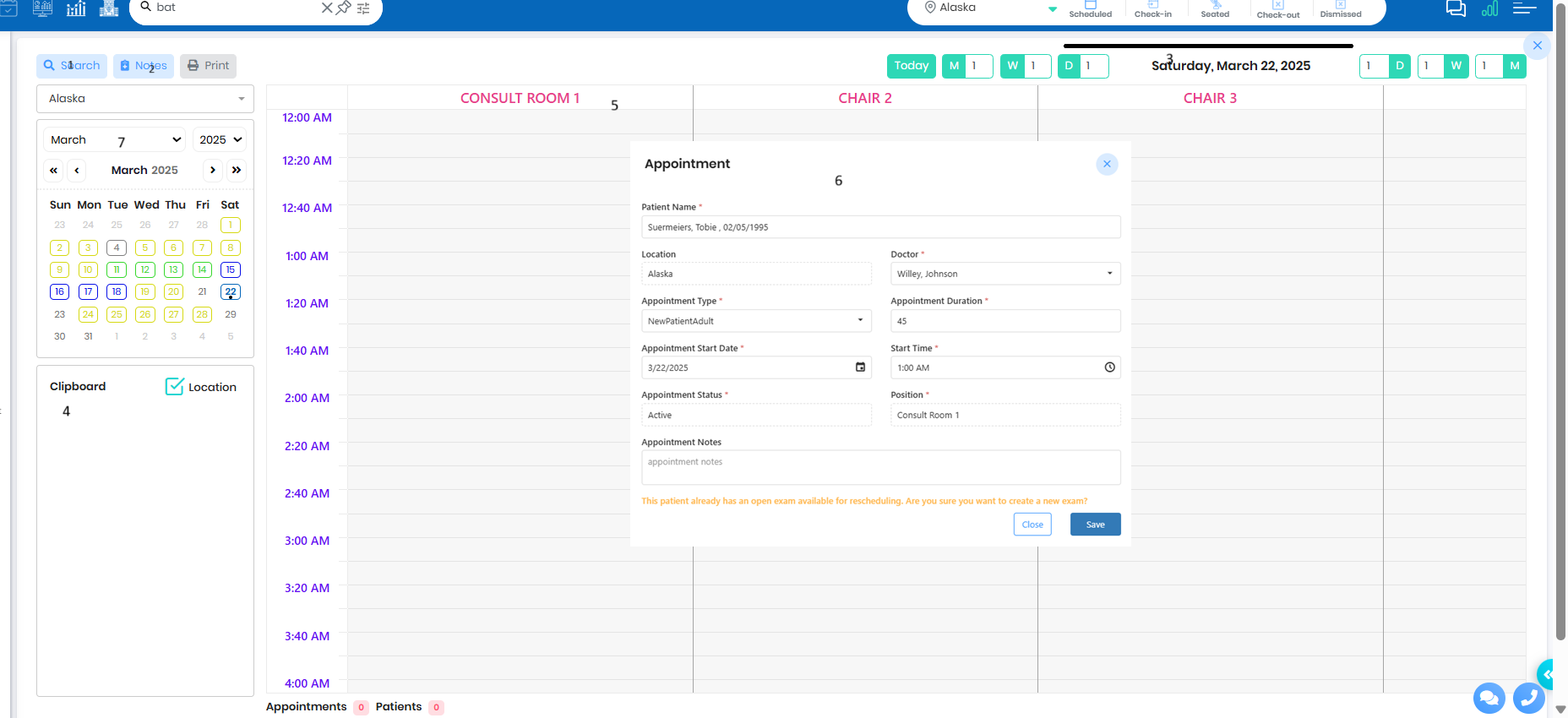
1.Appointment Search
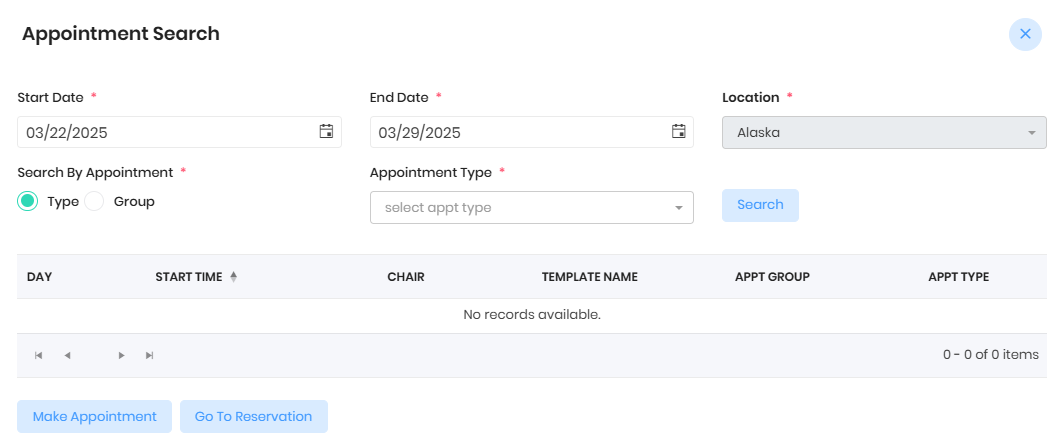
- Apply respective templates to the daily schedule from the practice config ->Schedule->ScheduleTemplate
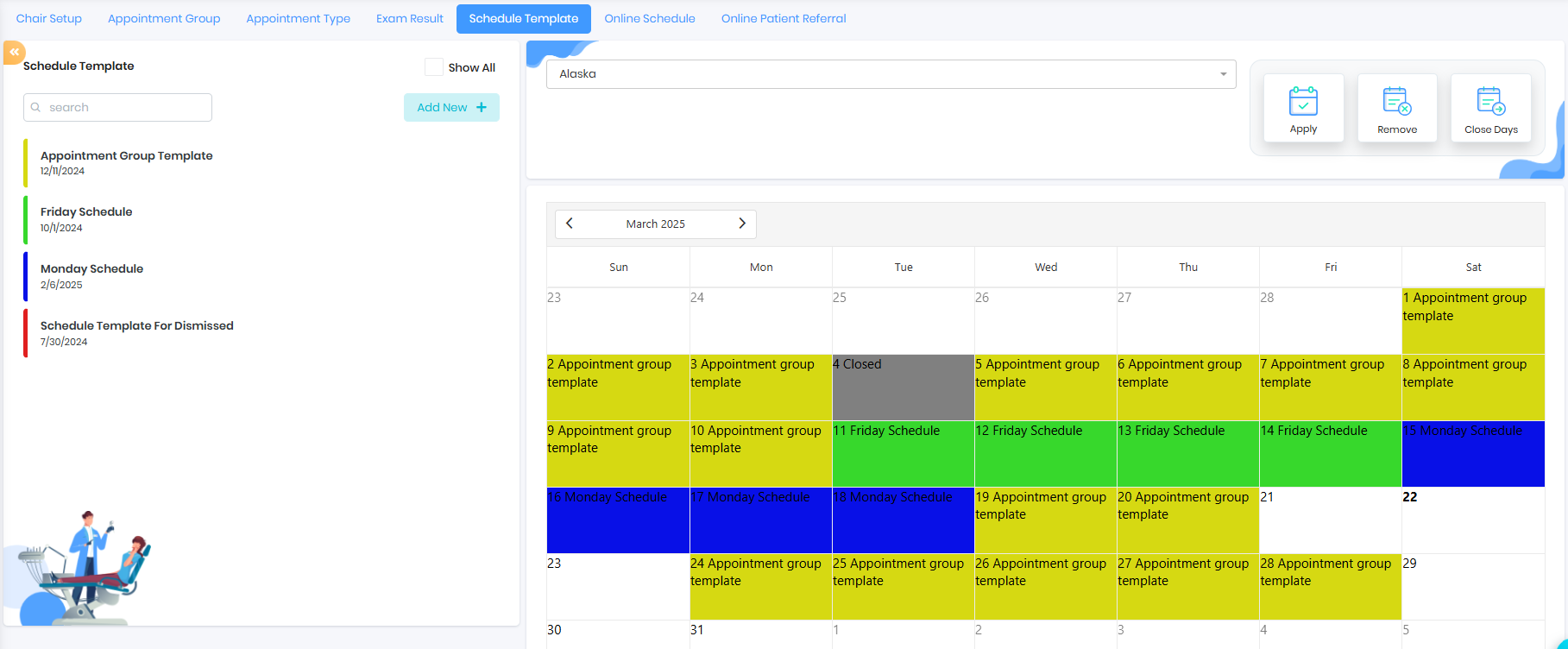
- Use the search filter to search for appointments, select appointment and make appointment
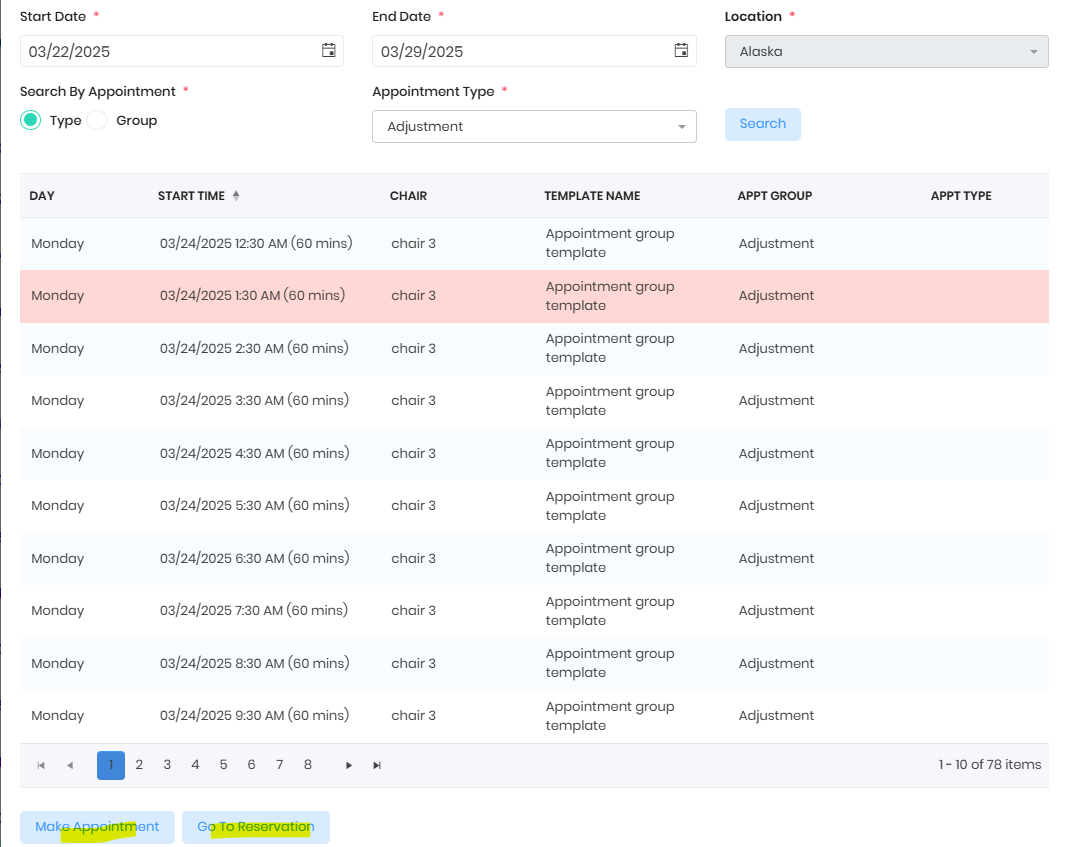
- Go to Reservation will take the user to the daily schedule for the selected day
2. Notes
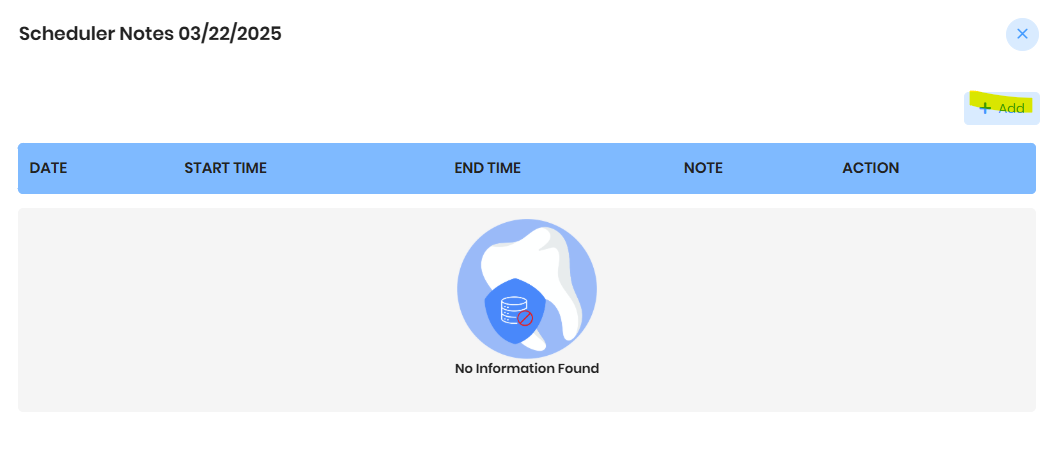
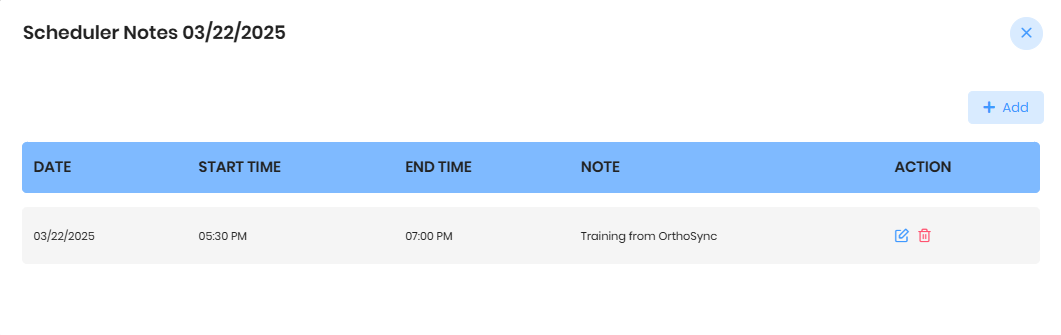
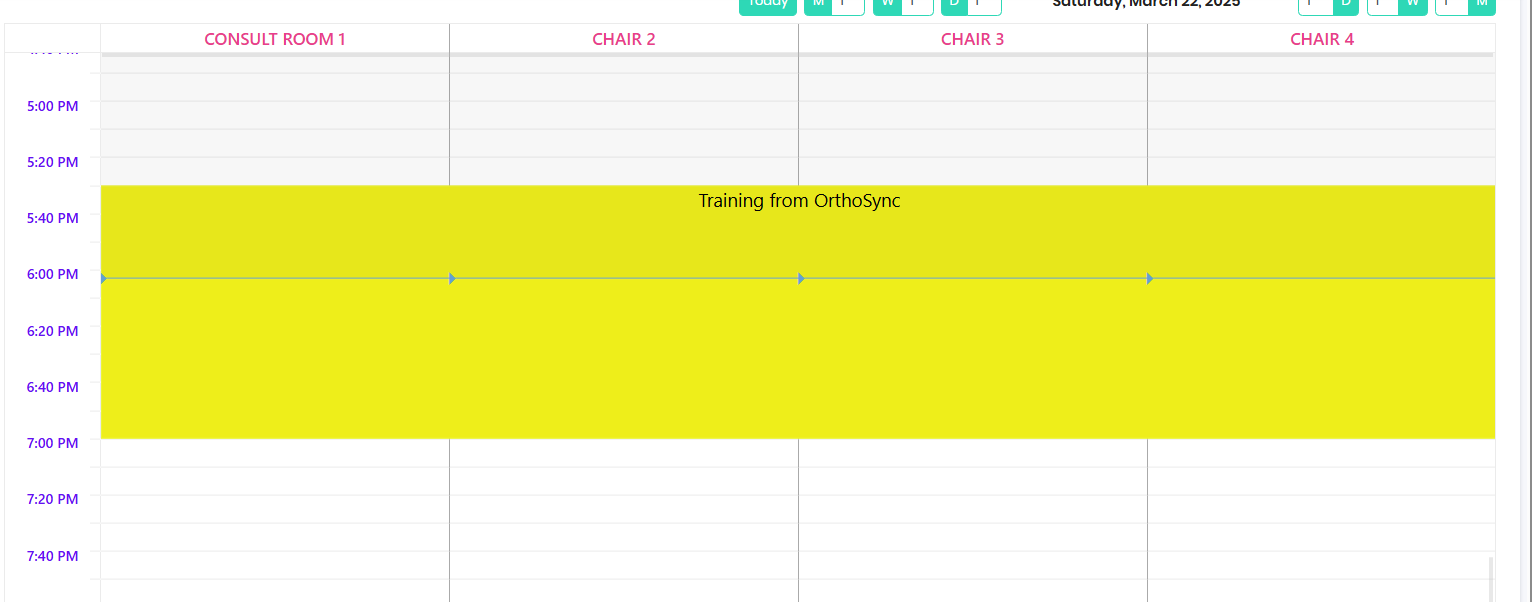
- Add or block schedule for training/emergency or daily huddle messages
3. Navigate Schedule

4. Clipboard
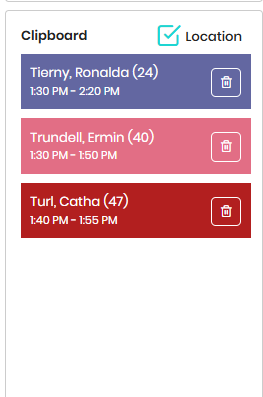
- Drag and Drop the patients from the schedule to the clipboard to reschedule the appointment
5. Chairs
- Configured chairs will show on the daily template
- Applied schedule template will show on the respective day
6. Schedule Appointment
- Double click on the respective chair and Search Patient
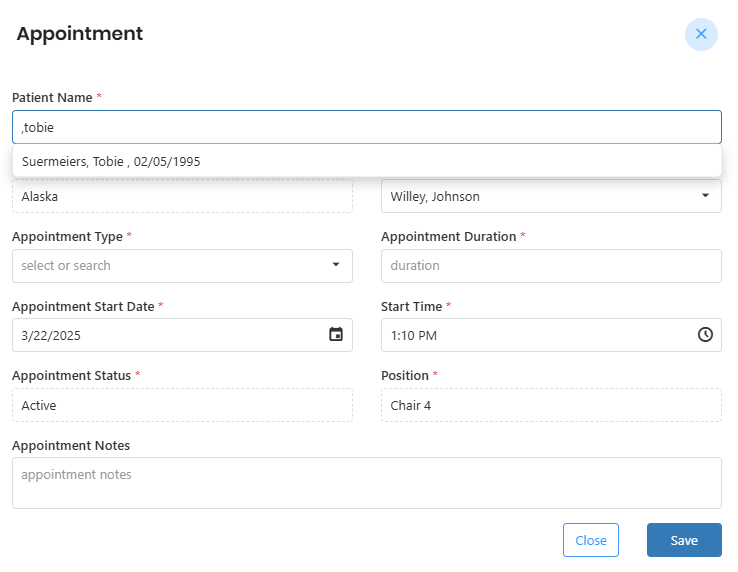
- Set up appointment type and notes if needed
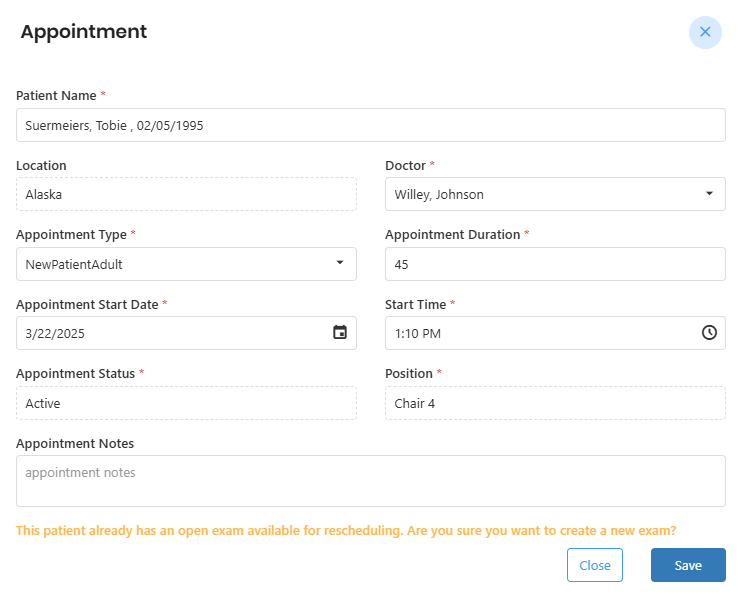
- Save Appointment
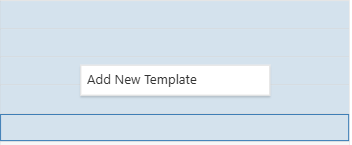
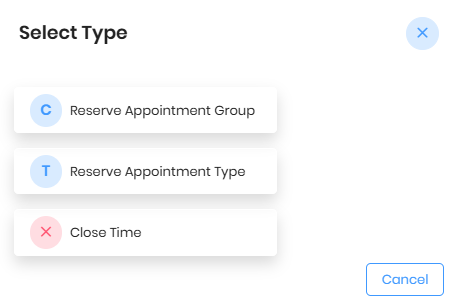
Custom Template
- Select the slots on the chair and right click to add custom template
Was this article helpful?
That’s Great!
Thank you for your feedback
Sorry! We couldn't be helpful
Thank you for your feedback
Feedback sent
We appreciate your effort and will try to fix the article