Note: Template are configured by Location
Go to schedule template
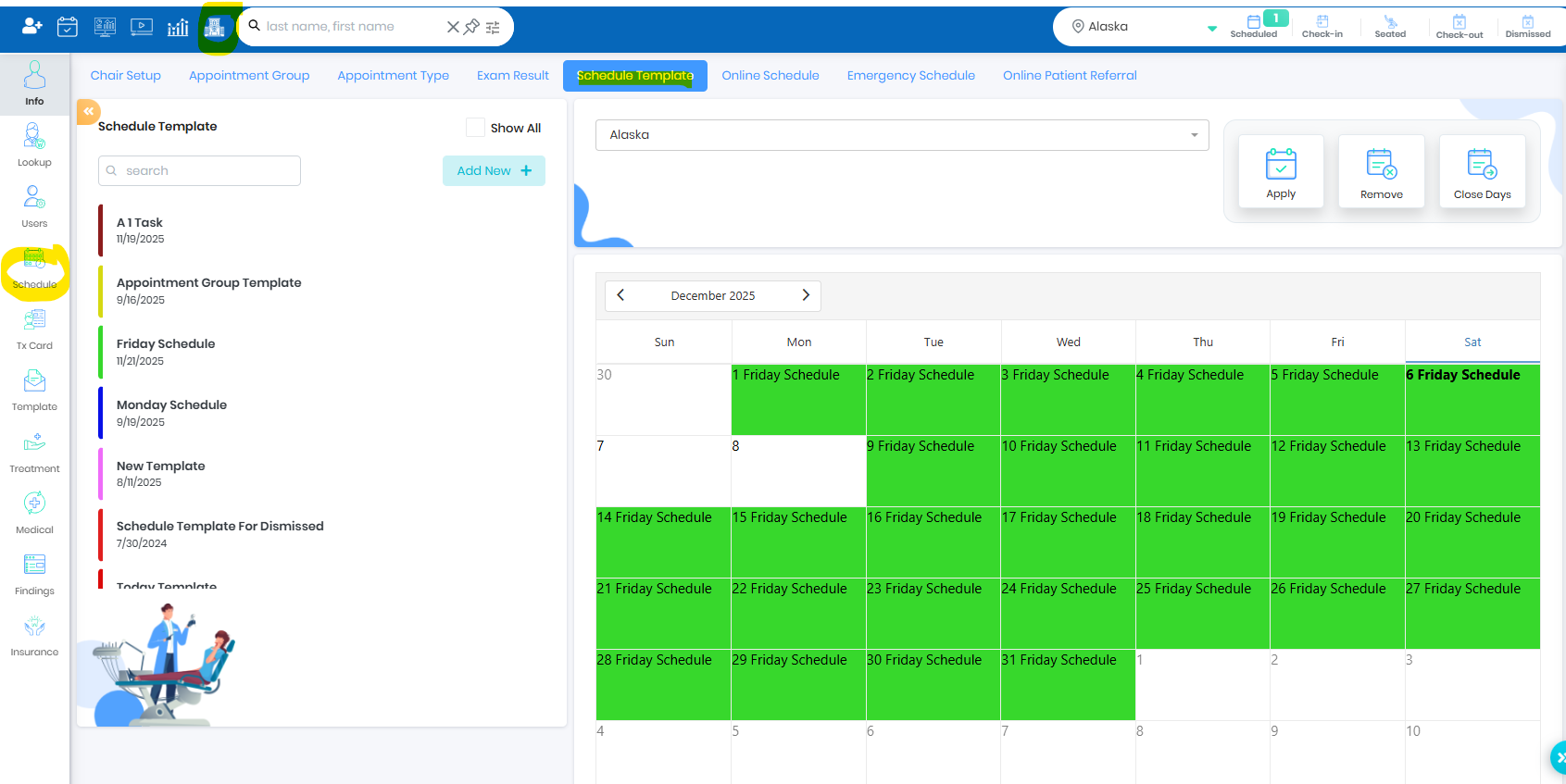
Click Add New
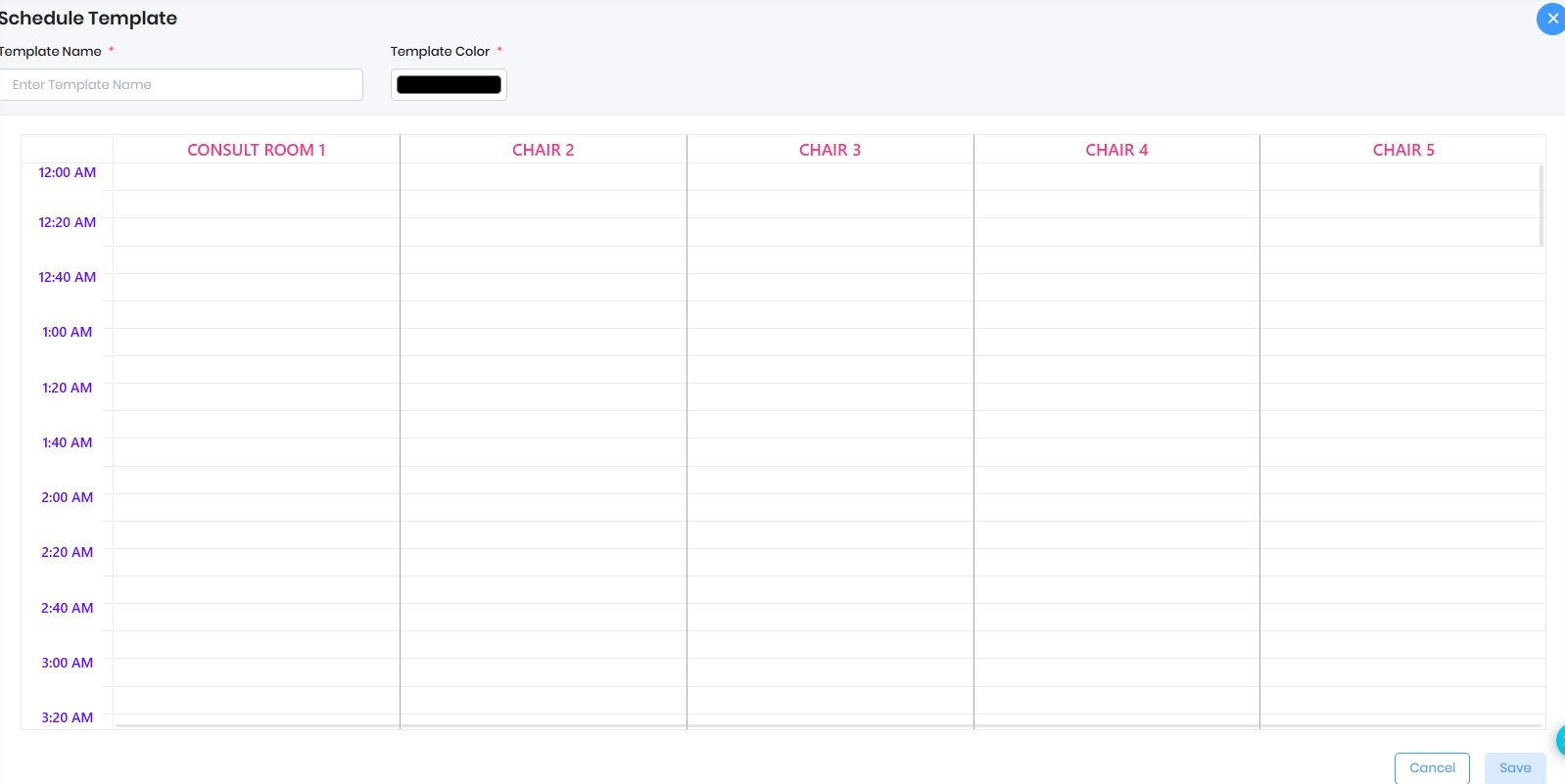
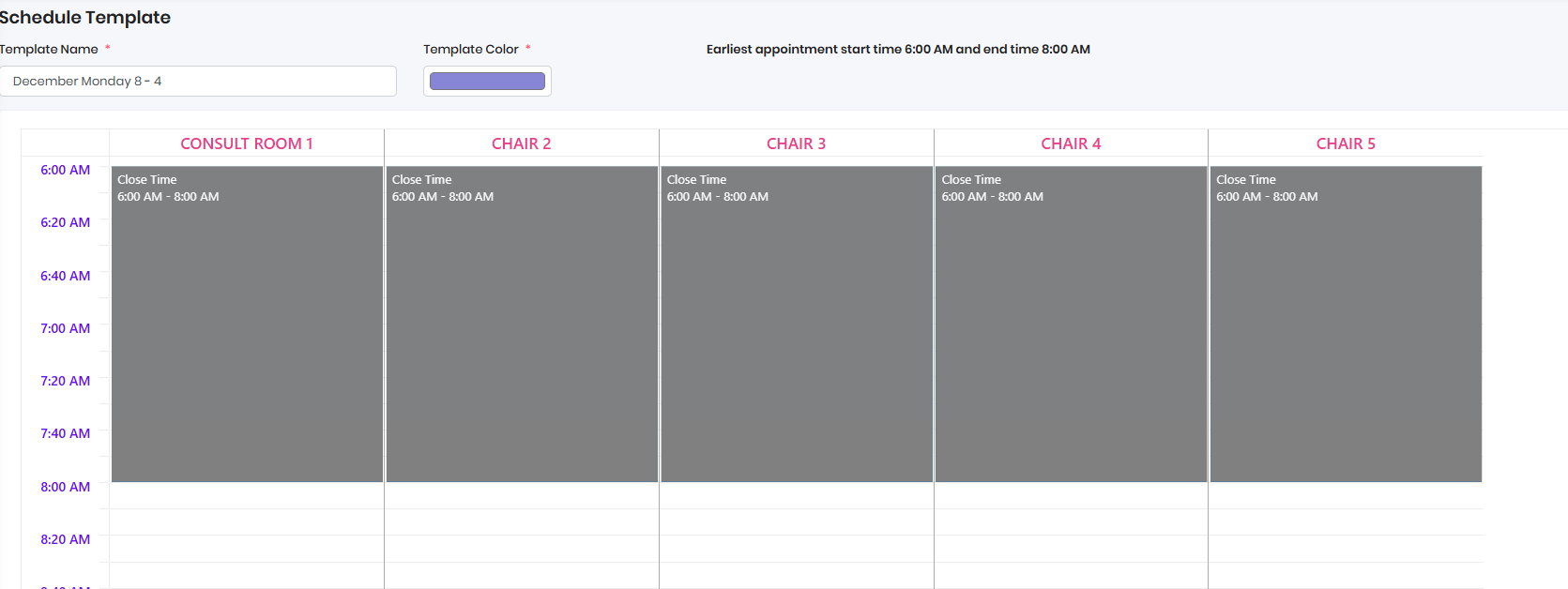
Choose Template Name and Color

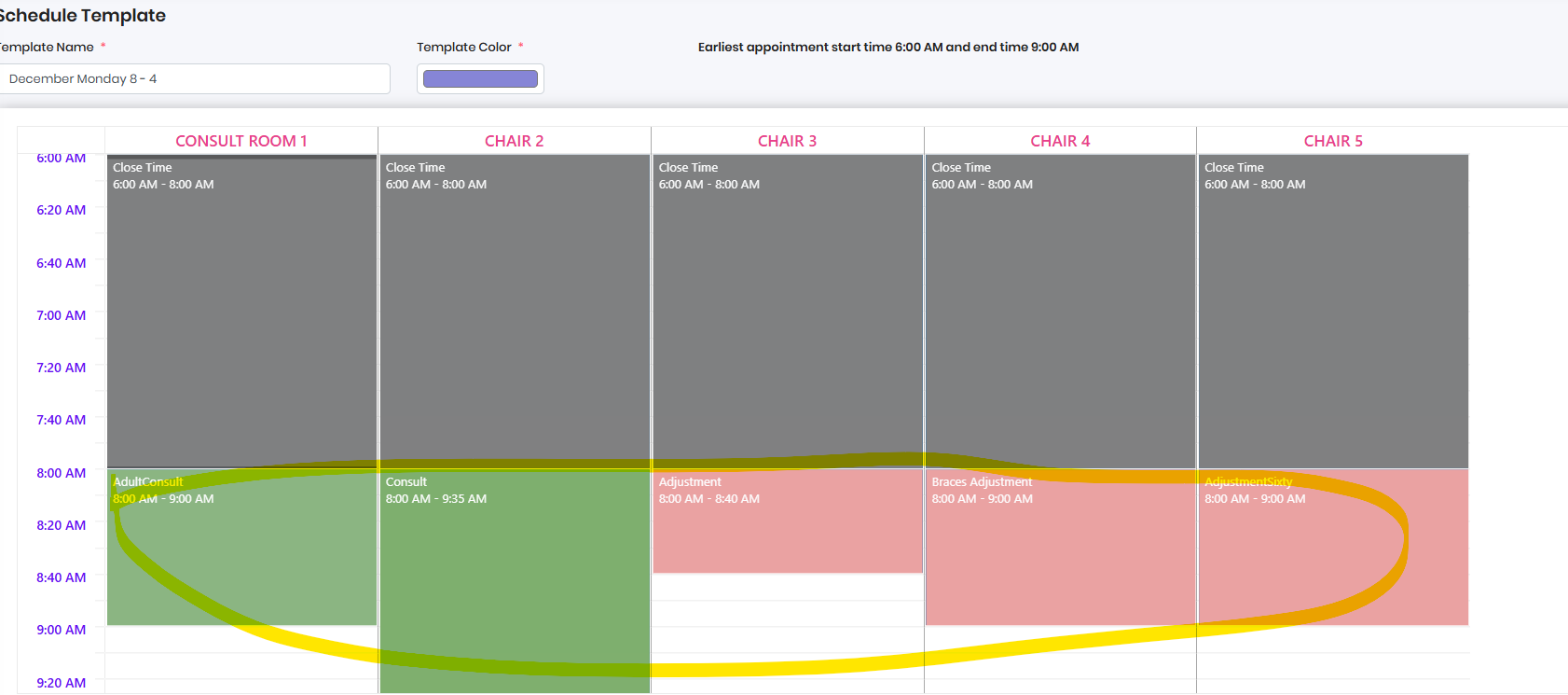
Configure Chair with Different Appointment Class or Type or Close time - Left Click on the Mouse
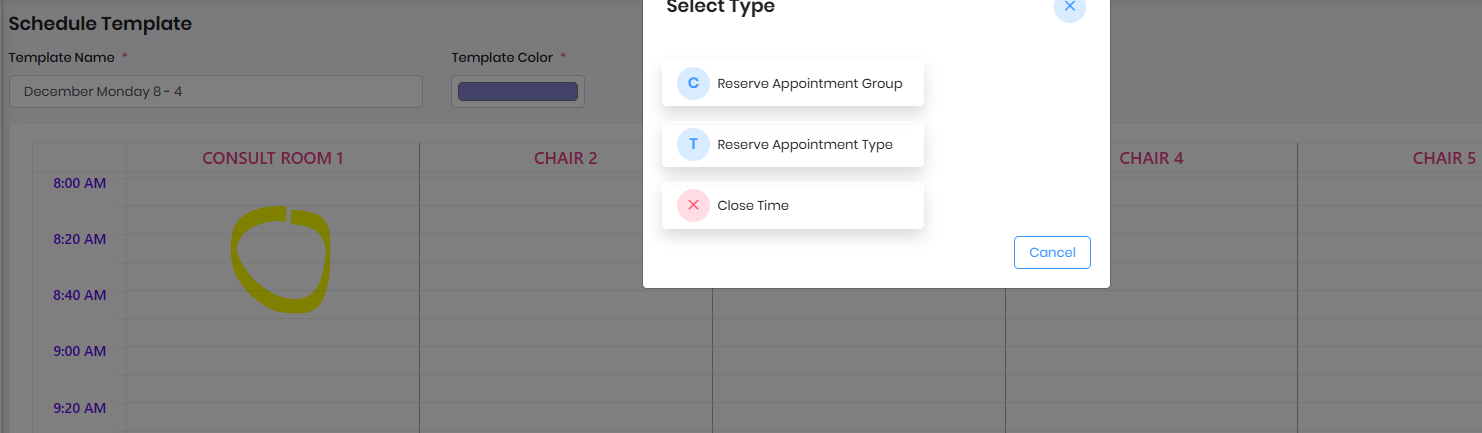
Appointment Group:
- All appointment types associated with the appointment group will be allowed to schedule on the reservation slots
Appointment Type
- Only specific appointment type will be allowed to schedule on the reserved slots
Close Time
- Can close the particular chair, multiple chairs on the specified slot
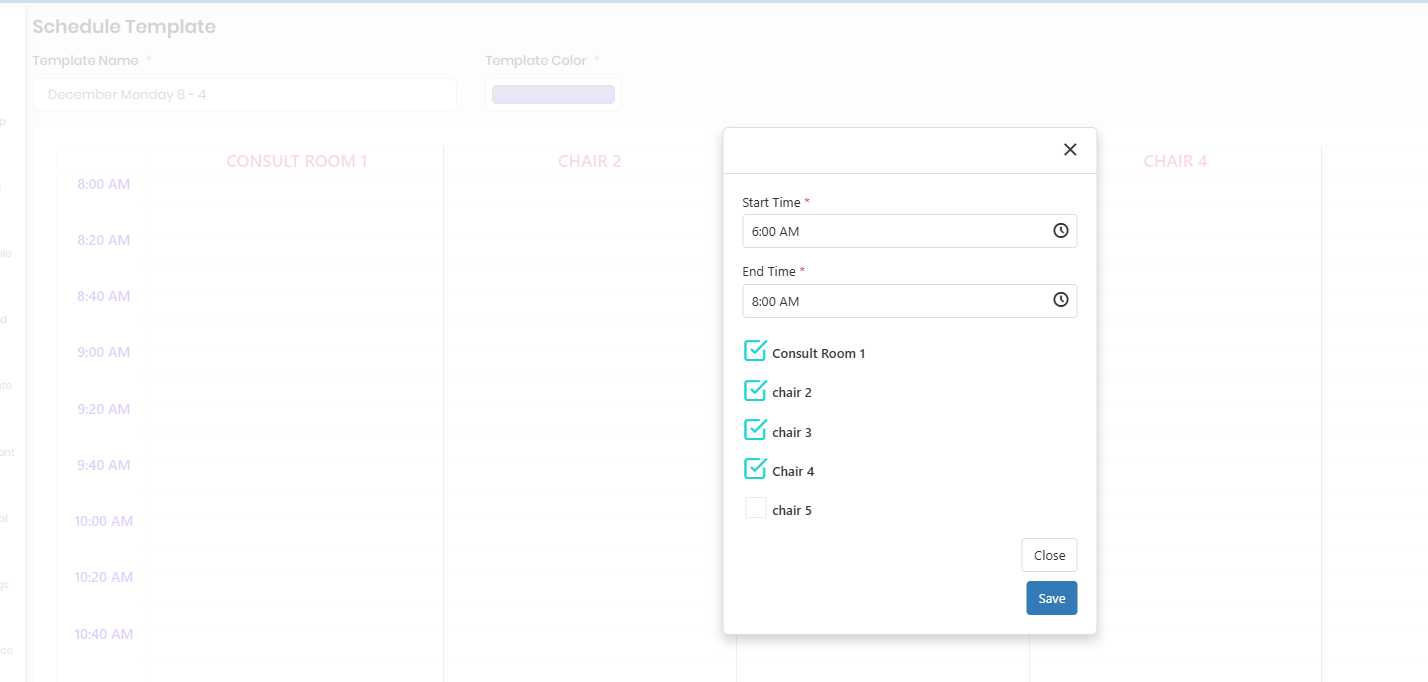
Configure specific appointment type or appointment group
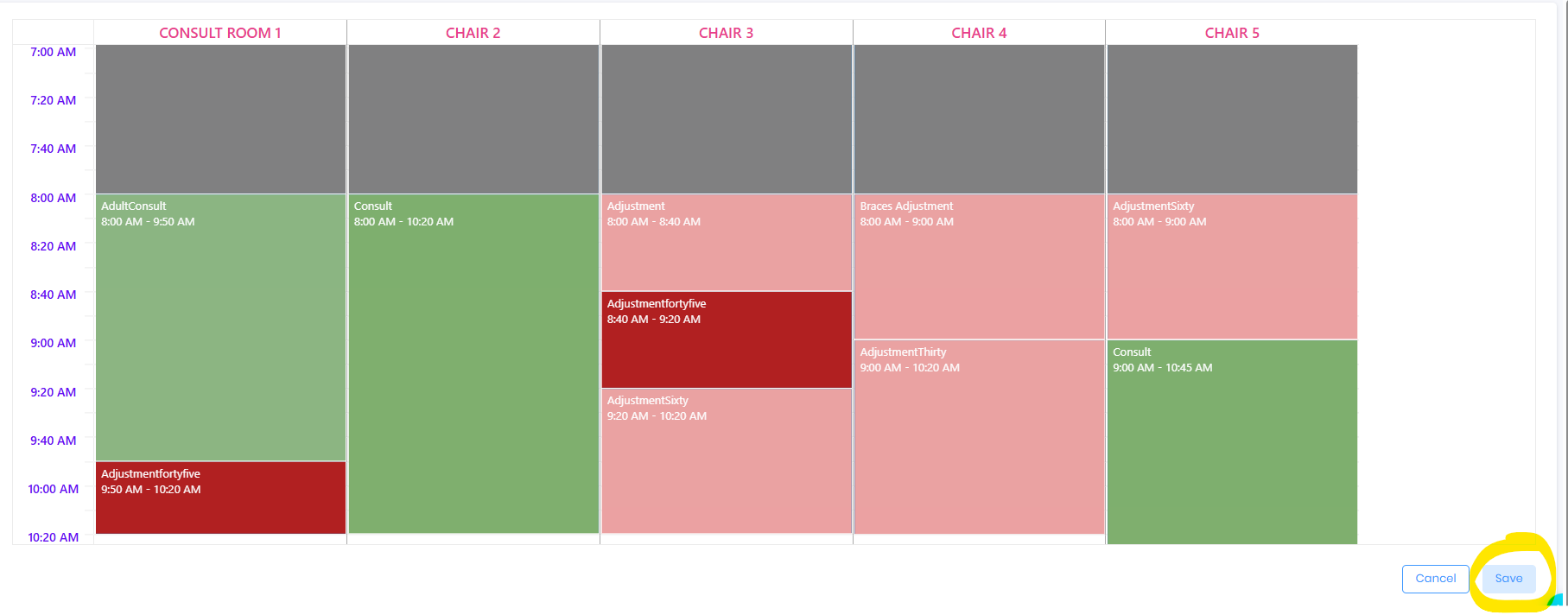
Click Save button to the save the template
Use Edit icon to edit the template

Delete icon deactivates the template

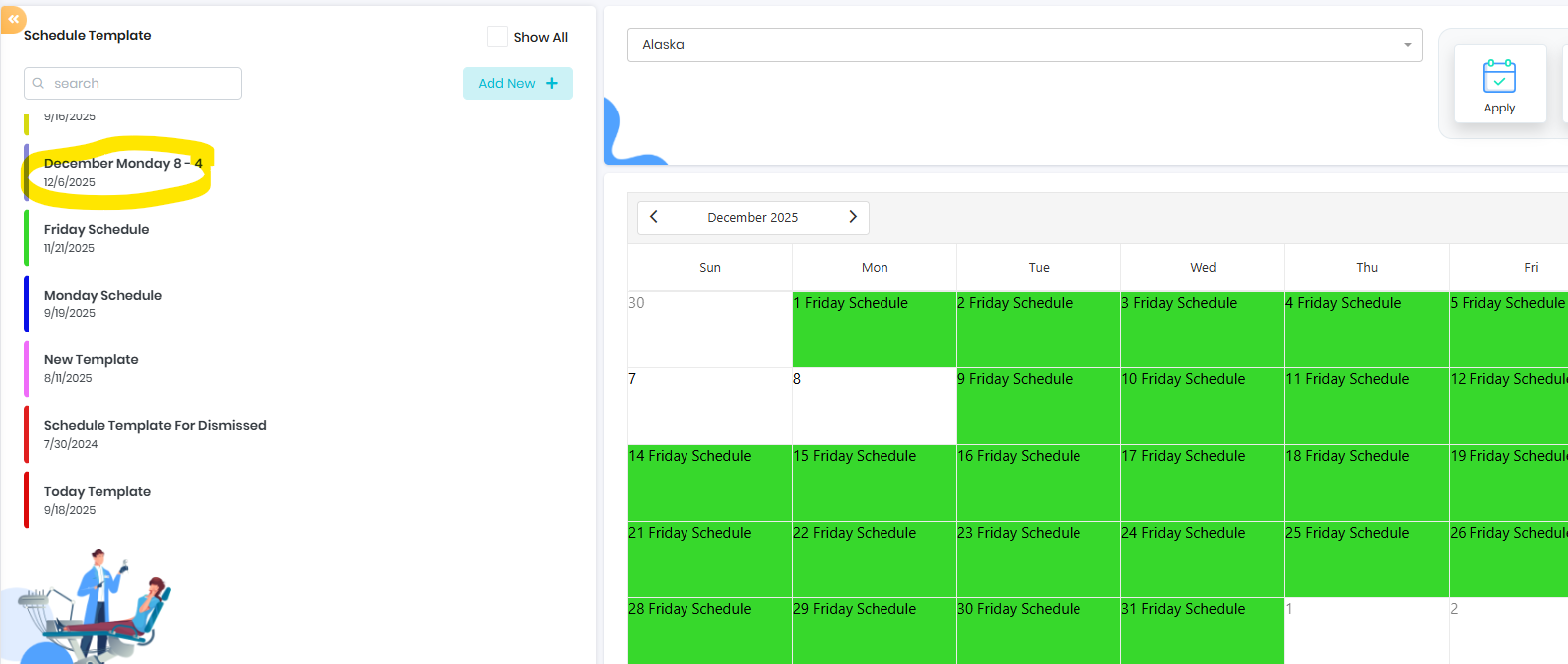
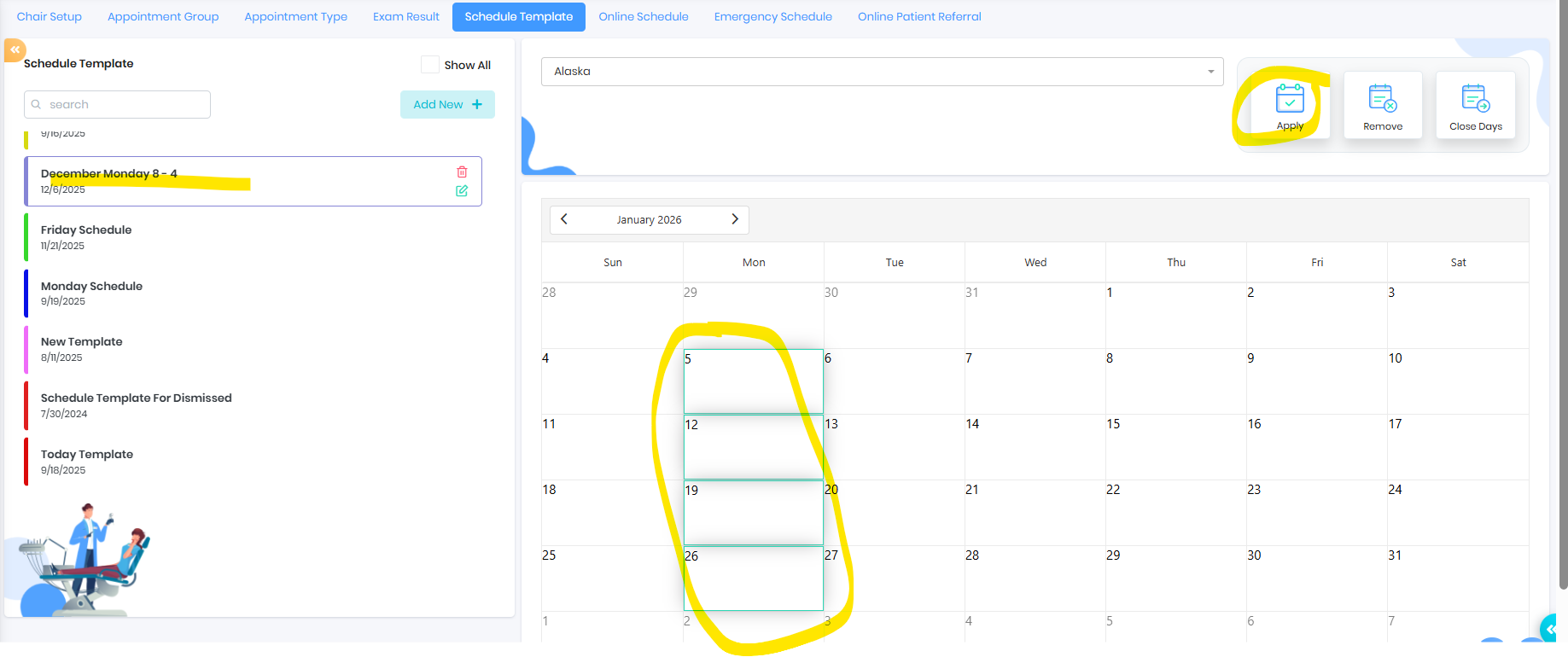
Apply specific template on daily schedule - Only one template can be applied on a day
- select the template to apply
- select the day
- apply
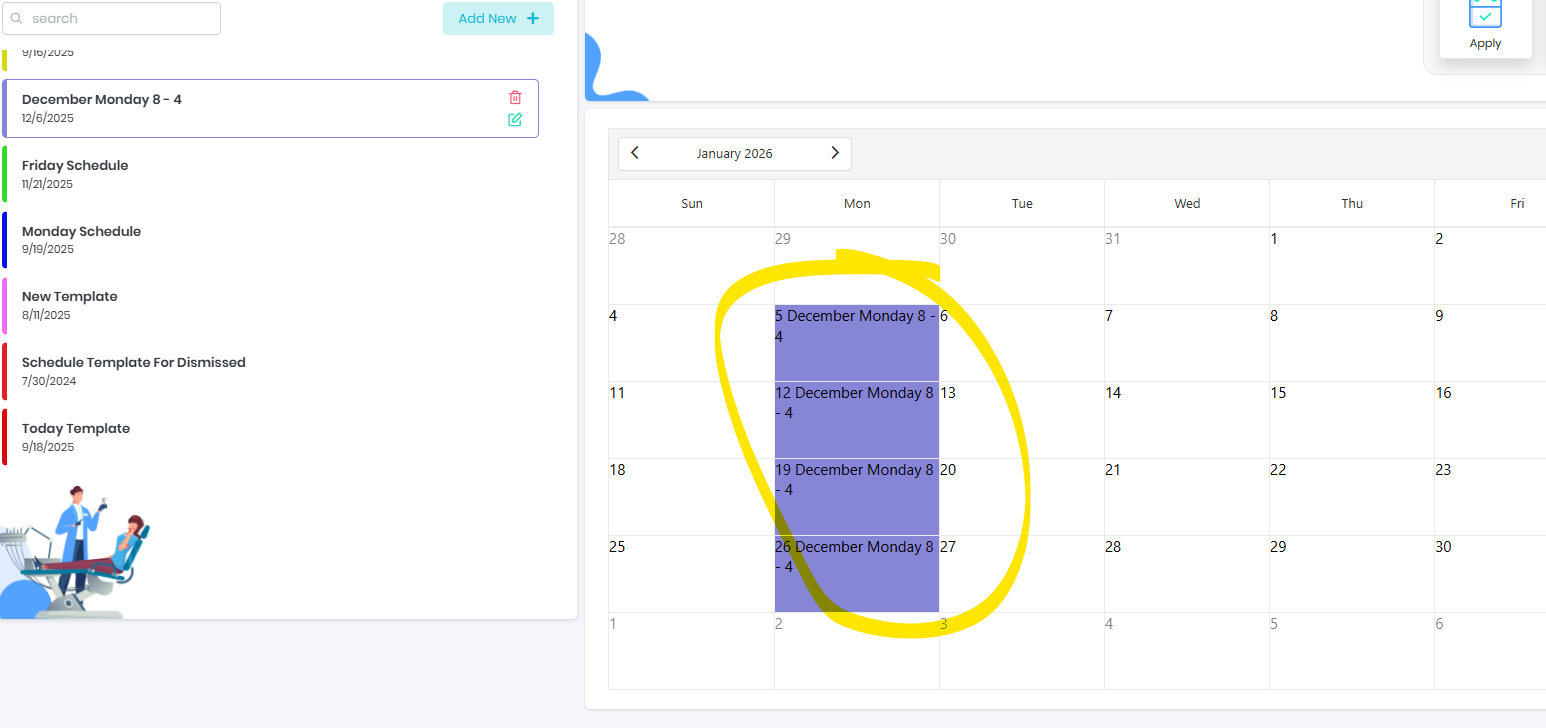
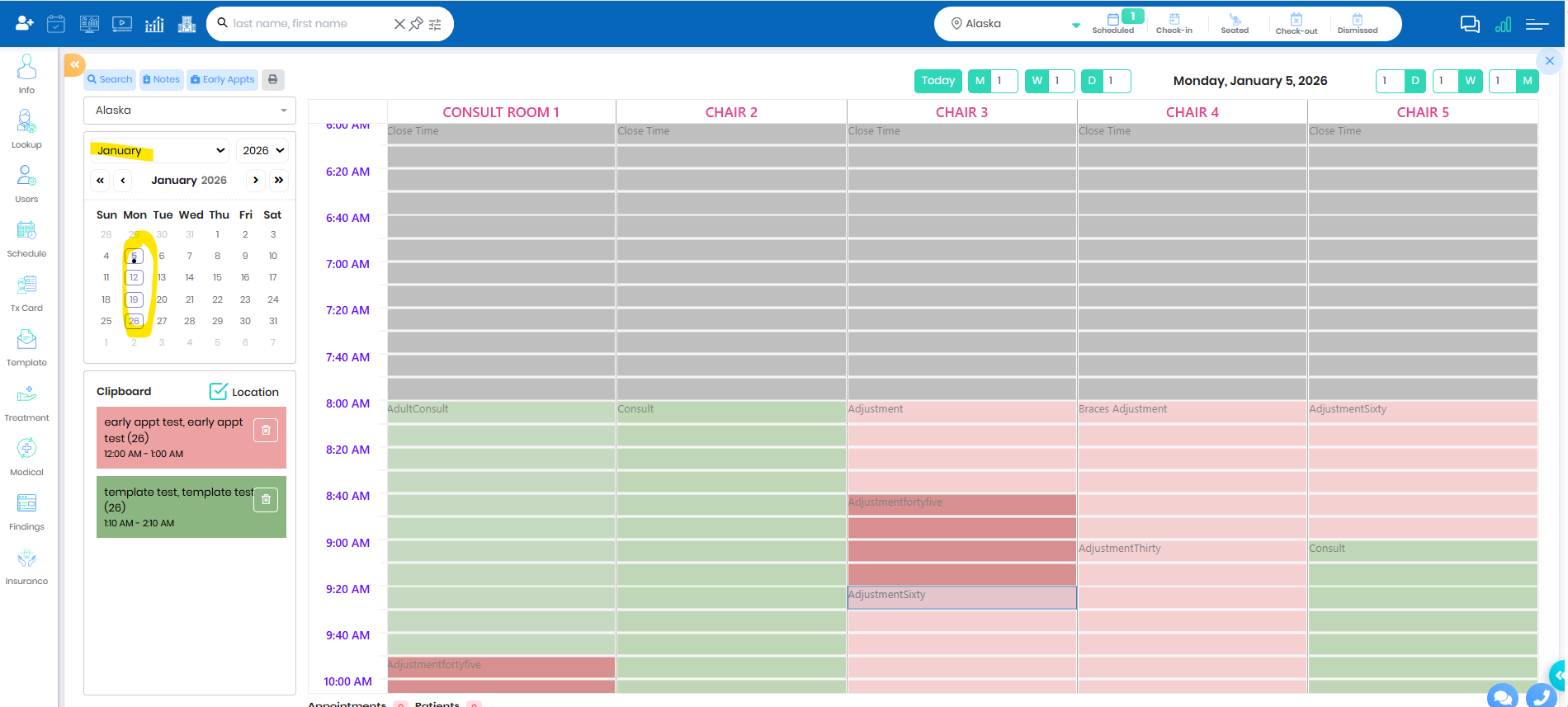
Daily Schedule
We can see the applied template on all the Mondays of the January
Was this article helpful?
That’s Great!
Thank you for your feedback
Sorry! We couldn't be helpful
Thank you for your feedback
Feedback sent
We appreciate your effort and will try to fix the article