Purpose
The TextToPay feature allows practice staff to send secure, patient-specific payment links via email or text message. Patients can complete payments online without logging into the system, improving convenience and reducing administrative overhead.
Configuration by Practice Administrator
Only Practice Administrators have access to configure TextToPay or MiscTextToPayUrl templates.
Step 1: Navigate to Template Configuration
- Log in to the system as a Practice Administrator.
- Go to Practice Configuration > Templates.
- Open the Reminder Template page under the Templates menu.
Step 2: Create a New Template
- Click "Create New Template."
- Select Category: Text To Pay or Misc Text To Pay
- In the message body editor, insert the TextToPayURL or MiscTextToPayUrl placeholder:
- Under Basic Template Placeholder, choose {{TextToPayURL}} or {{MiscTextToPayUrl}}
The placeholder {{TextToPayURL}} or {{MiscTextToPayUrl}} will automatically be replaced with the patient-specific payment link when the message is sent.
Example Template:
Hello {{PatientName}}, your account balance is due. Please make a payment by clicking the following secure link: {{TextToPayURL}} or {{MiscTextToPayUrl} . This link will expire in 15 days.
Sending TextToPay Messages
Step 1: Open the Patient Dashboard
Practice staff can send the TextToPay or MiscTextToPayUrl message from within a patient’s record:
- Navigate to Patient Dashboard.
- Select the Send Notifications from 3 dots
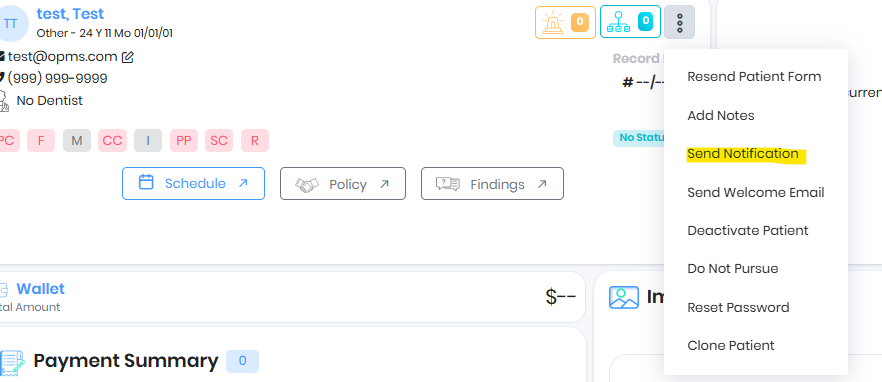
Step 2: Select TextToPay Template
- Choose the previously configured TextToPay or MiscTextToPayUrl template from the list.
- The system will:
- Replace all placeholders with the patient’s actual details.
- Generate a secure payment link specific to the patient.
- Replace all placeholders with the patient’s actual details.
Step 3: Send the Message
- Click Send.
- The message will be delivered to the patient via:
- Email, or
- Text message, depending on the patient’s communication preferences.
Patient Experience
What the Patient Sees:
- A secure TextToPay message with a clickable link.
- Example:
"Hello John Doe, please make your payment here: https://paymentlink.com/xyz"
What Happens When They Click:
- The link opens a secure online payment page.
- The patient enters their payment information (card or ACH).
- They submit the payment.
- A confirmation message is shown upon success.
- No login is required. Patients can make payments directly via the link.
⏰ Link Expiration & Security
- Each TextToPay or MiscTextToPay Url is unique and secure.
- The link is valid for 15 days from the time it is sent.
- After 15 days, the link automatically expires and becomes inactive.
- If the link expires, the patient will be shown a message indicating the payment session is no longer valid.
Benefits
Feature | Description |
Self-Service | Patients can pay independently without needing login credentials. |
Secure | All links are encrypted and time-bound. |
Time-Limited | Ensures patient action within a defined period (15 days). |
Reusable | Staff can use pre-configured templates repeatedly. |
Customizable | Templates support placeholders for dynamic content. |
Summary Workflow
Role | Action |
Practice Admin | Creates TextToPay or MiscTextToPay template using placeholders. |
Practice Staff | Sends messages via patient dashboard. |
Patient | Clicks link → Completes payment → Sees success message. |
Was this article helpful?
That’s Great!
Thank you for your feedback
Sorry! We couldn't be helpful
Thank you for your feedback
Feedback sent
We appreciate your effort and will try to fix the article