Step1: Find the Smart Scheduling URL
Please find the smart scheduling URL in the practice configuration
- The office may choose to enable any combination of scheduling options, including New Patient Online, Virtual, and Emergency scheduling.
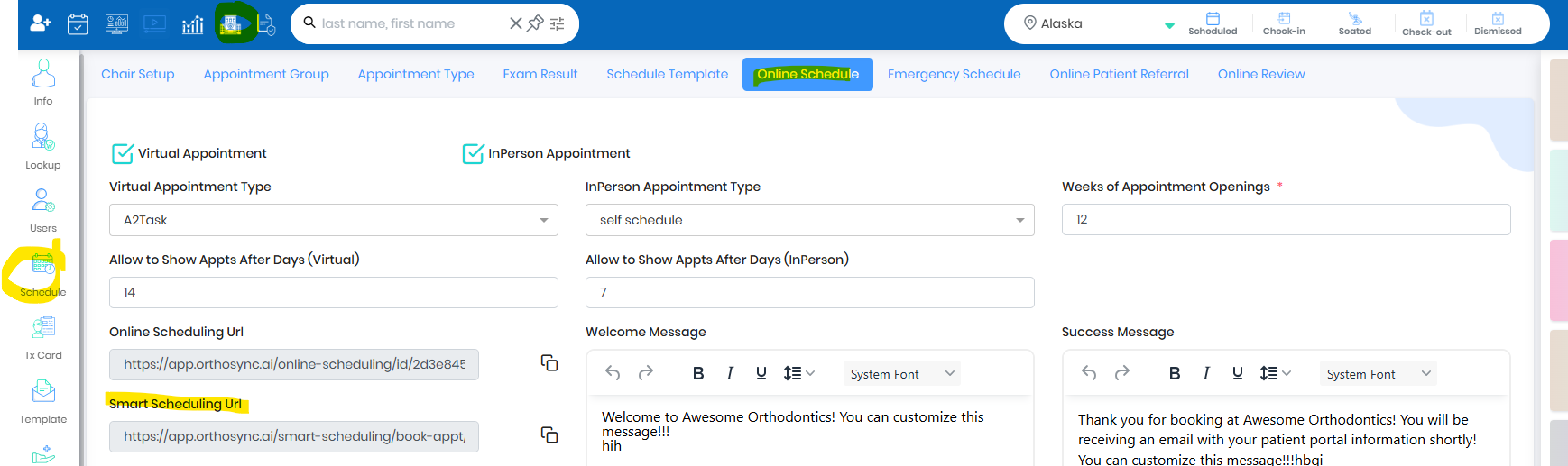
- Smart scheduling is one link which will show New Patient Online Scheduling , Emergency Scheduling and Active Patient Scheduling
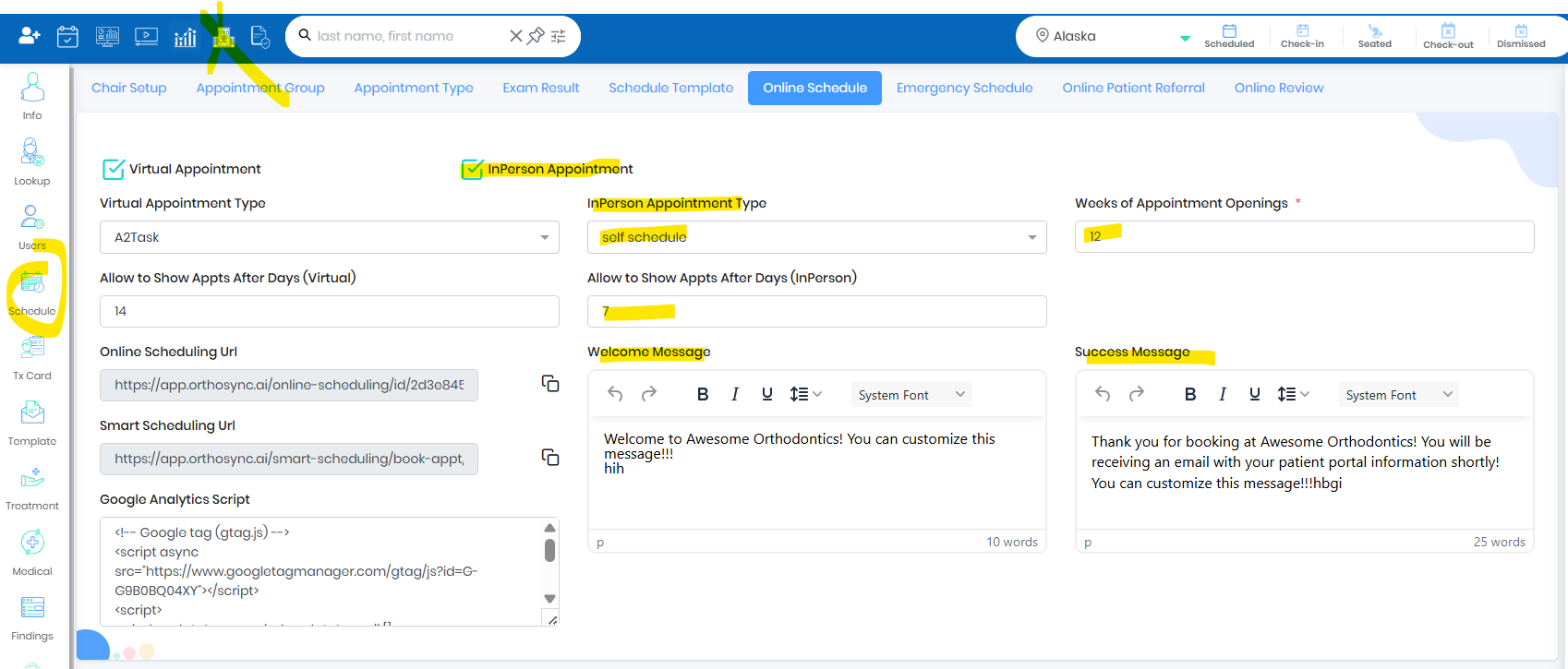
Step2: In Person Online Scheduling Appointment
- Set up New Patient Online Scheduling by selecting the appointment type the office wants to make available for online booking.
- Set how many weeks of appointment availability should be displayed to patients
- Choose how many days from today patients can start seeing available appointment slots (e.g., 0 = tomorrow, 1 = day after tomorrow).
- Set up the welcome message shown when patients land on the page and the success message displayed after an appointment is booked
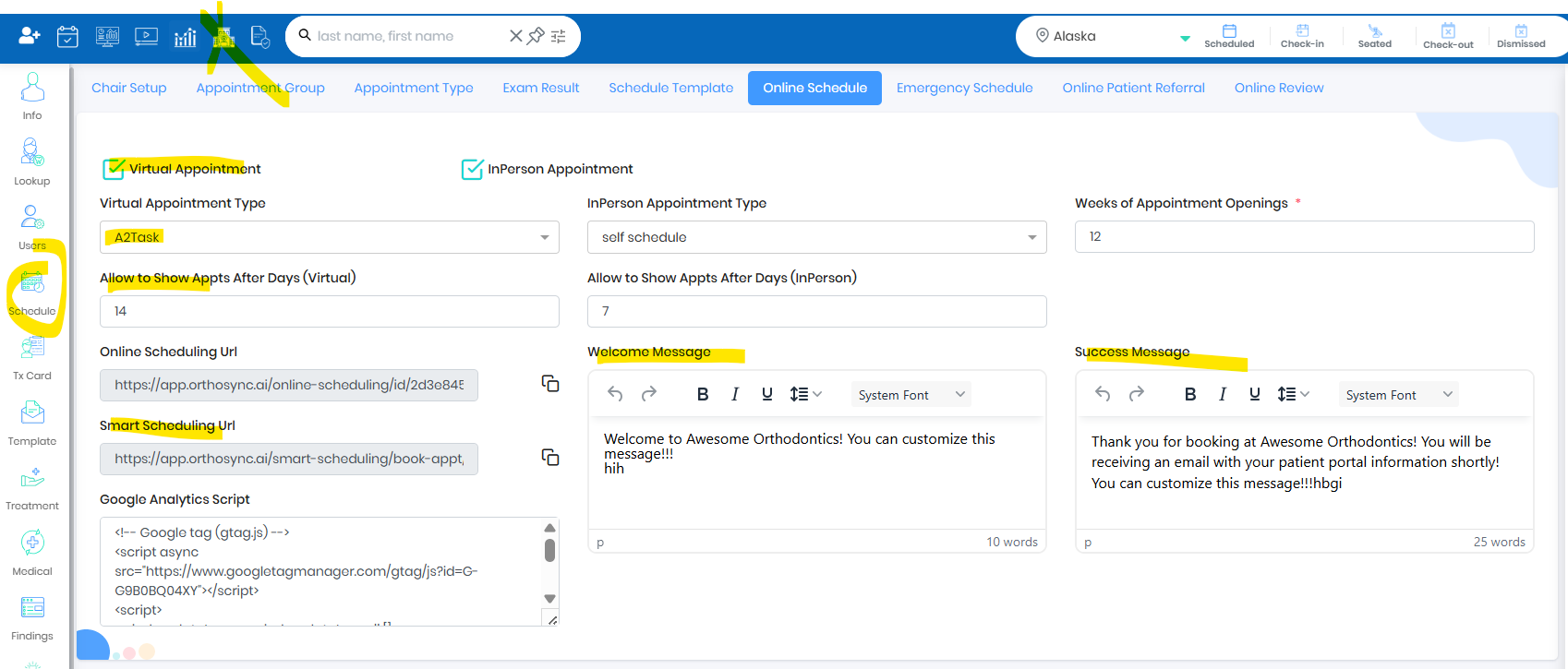
Step3:Virtual Scheduling
- Set up Virtual Scheduling by selecting the appointment type the office wants to make available for online booking.
- Choose how many days from today patients can start seeing available appointment slots (e.g., 0 = tomorrow, 1 = day after tomorrow).
- Set up the welcome message shown when patients land on the page and the success message displayed after an appointment is booked
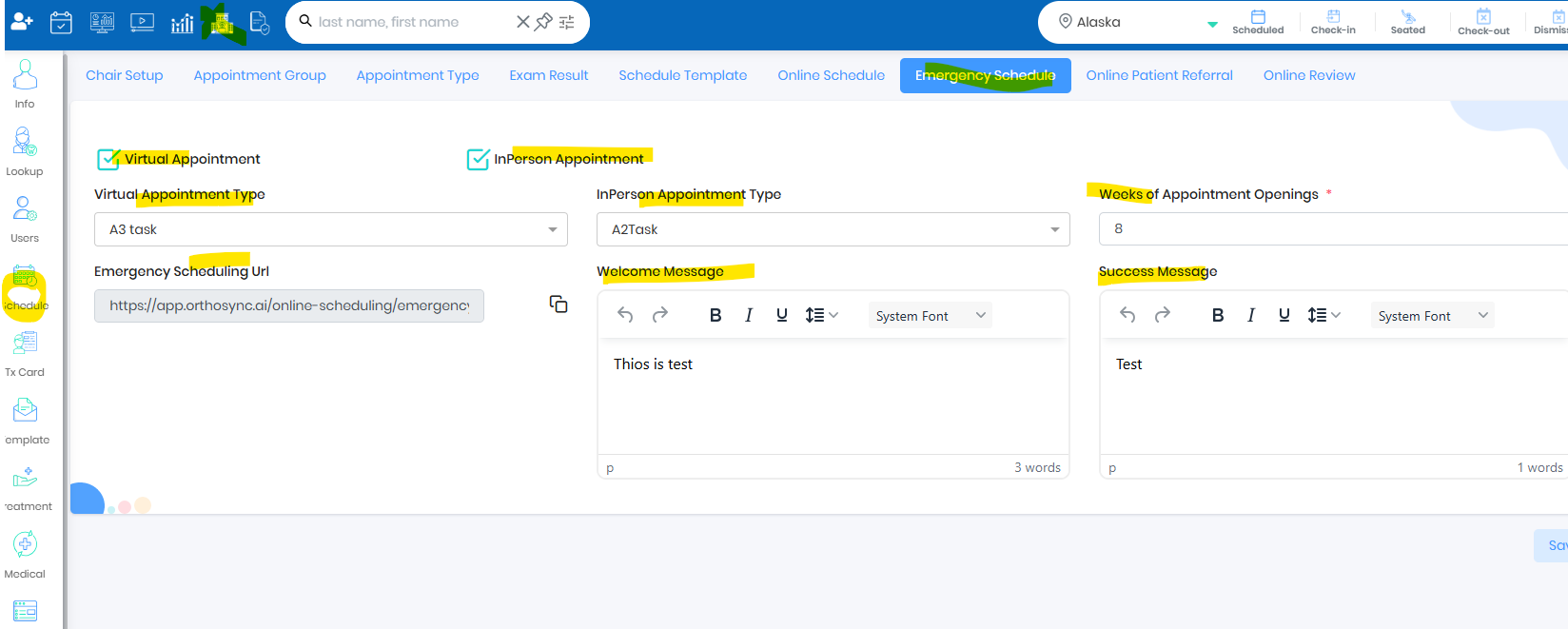
Step4: Emergency Scheduling
- Set up Virtual Scheduling by selecting the appointment type the office wants to make available for online booking.
- Set how many weeks of appointment availability should be displayed to patients
- Set up the welcome message shown when patients land on the page and the success message displayed after an appointment is booked
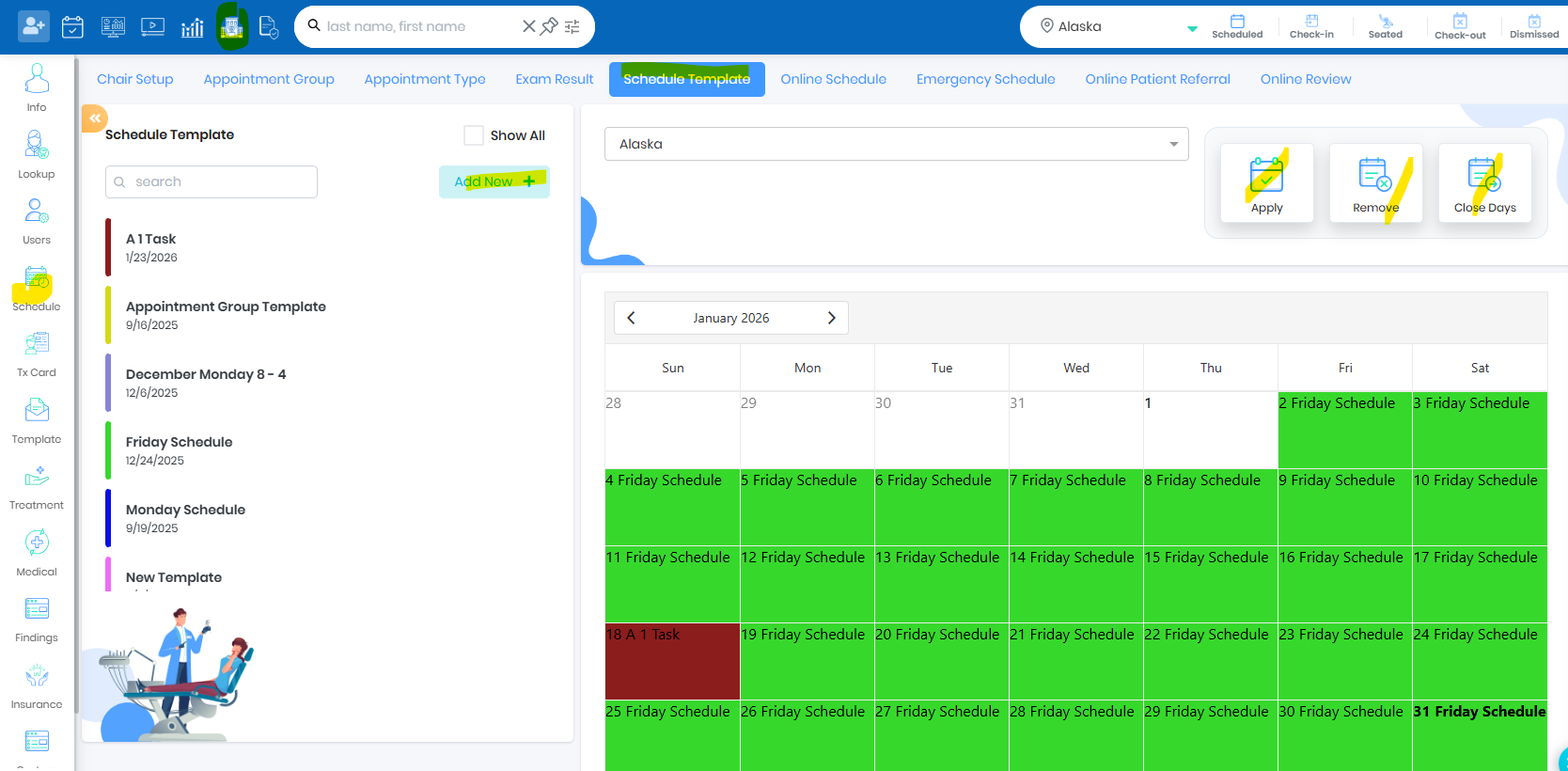
Step5: Set up Scheduling Template
- Create a scheduling template to define your available time slots. Patients will see appointment availability based on this template.
Was this article helpful?
That’s Great!
Thank you for your feedback
Sorry! We couldn't be helpful
Thank you for your feedback
Feedback sent
We appreciate your effort and will try to fix the article